

What you will set up
- A Salesforce External Client App with OAuth settings
- Consumer credentials and the Buckle callback saved in Buckle
- Permission sets that control who can authorize the app
- Per-agent access to the Salesforce connection
Before you start
- Use a Salesforce administrator account to configure the app and permission sets. The user connecting Buckle needs API access and the appropriate CRM permissions.
- Use your Salesforce My Domain host, such as
your-company.my.salesforce.comoryour-company.sandbox.my.salesforce.com.
Set up your connection
Salesforce uses your own External Client App on Buckle Cloud and self-hosted alike, so these steps are the same everywhere.Start in Buckle
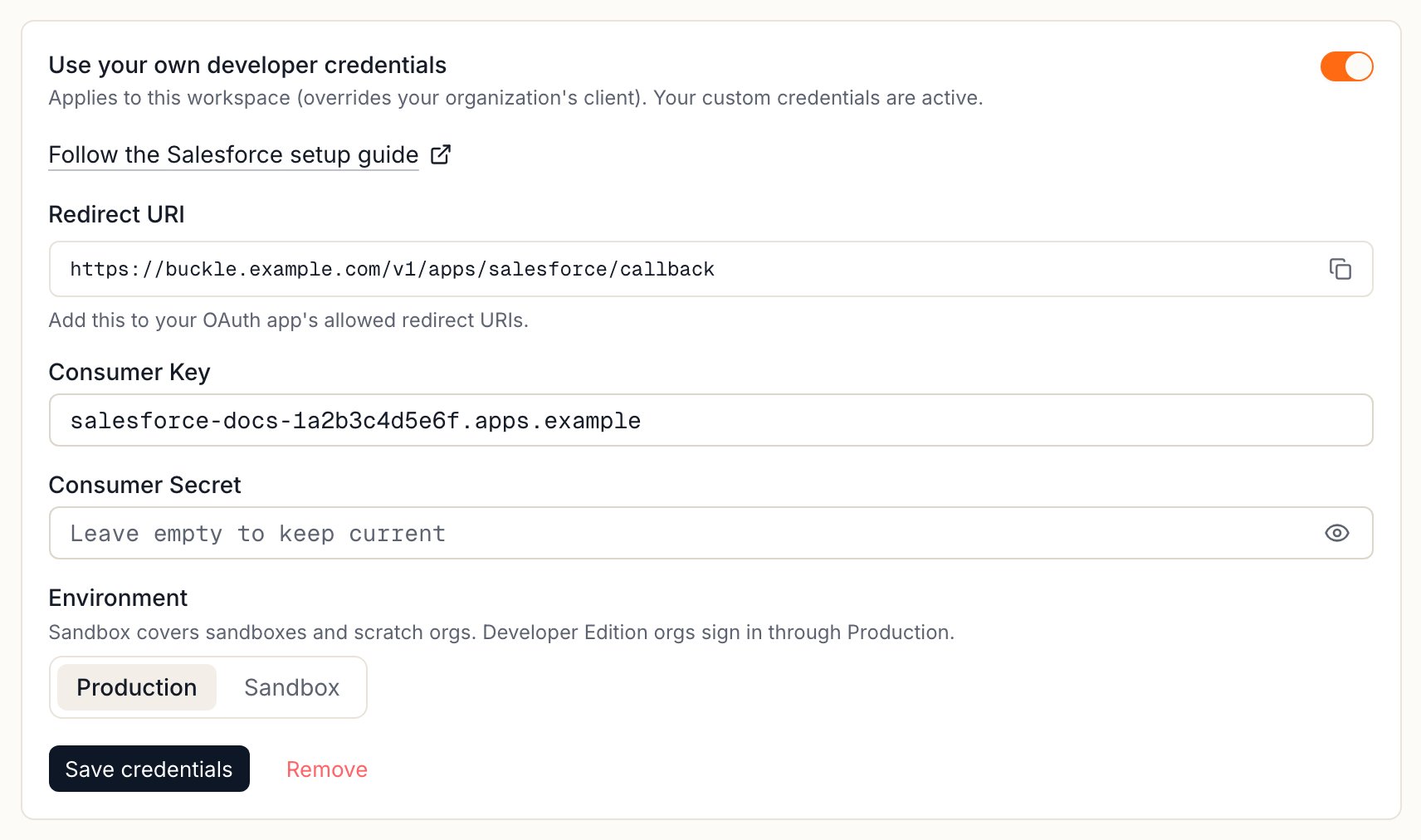
The Custom credentials card for Salesforce in Buckle.
- 1. Follow the Salesforce setup guide opens this guide in a new tab.
- 2. Copy your Redirect URI. You’ll paste it into Salesforce next. Do not use the example URL shown here.
- 3. Leave this card open. After the Salesforce setup, return to enter the Consumer Key, Consumer Secret, and Environment, then Save credentials.
Create the app
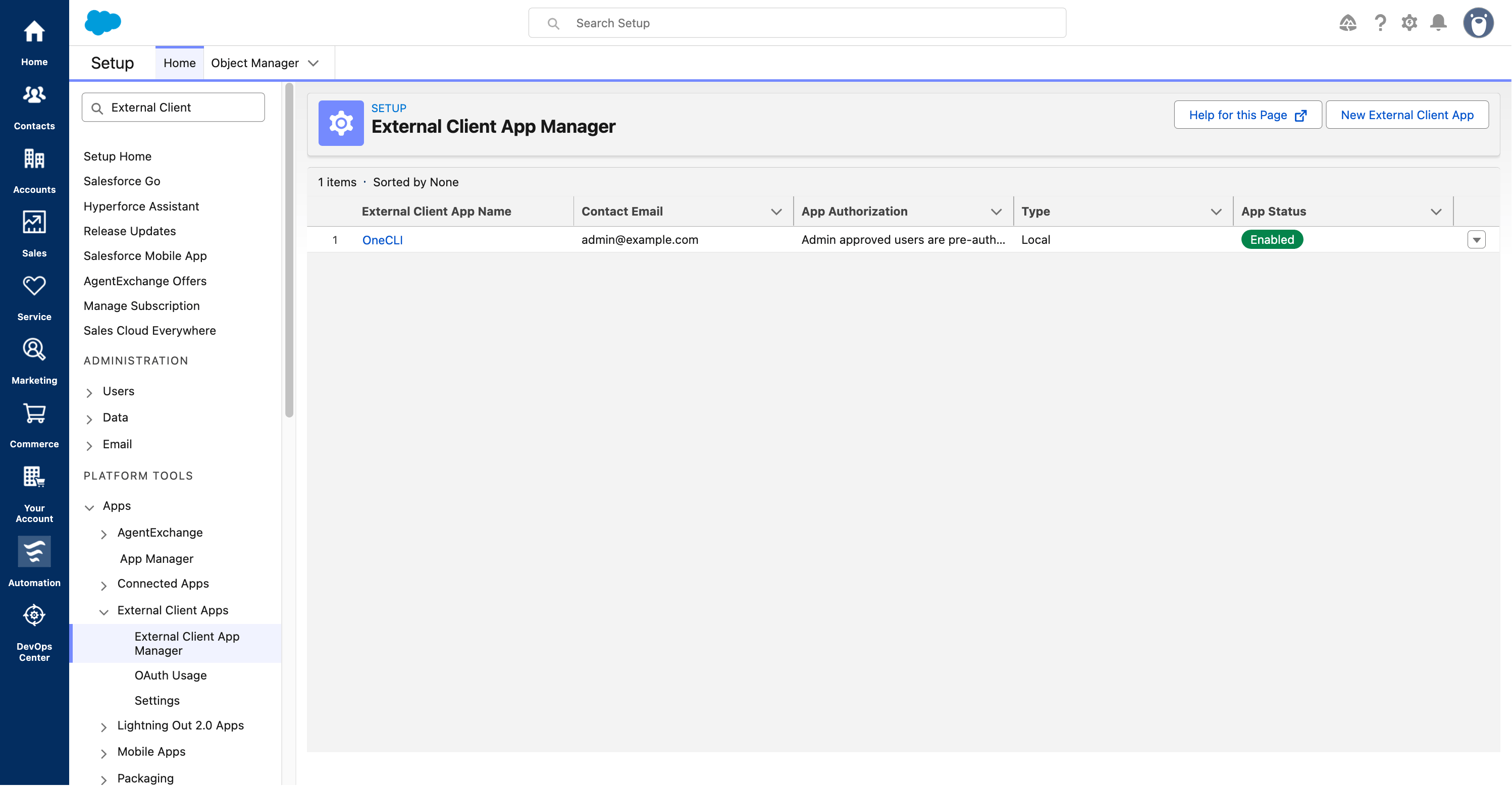
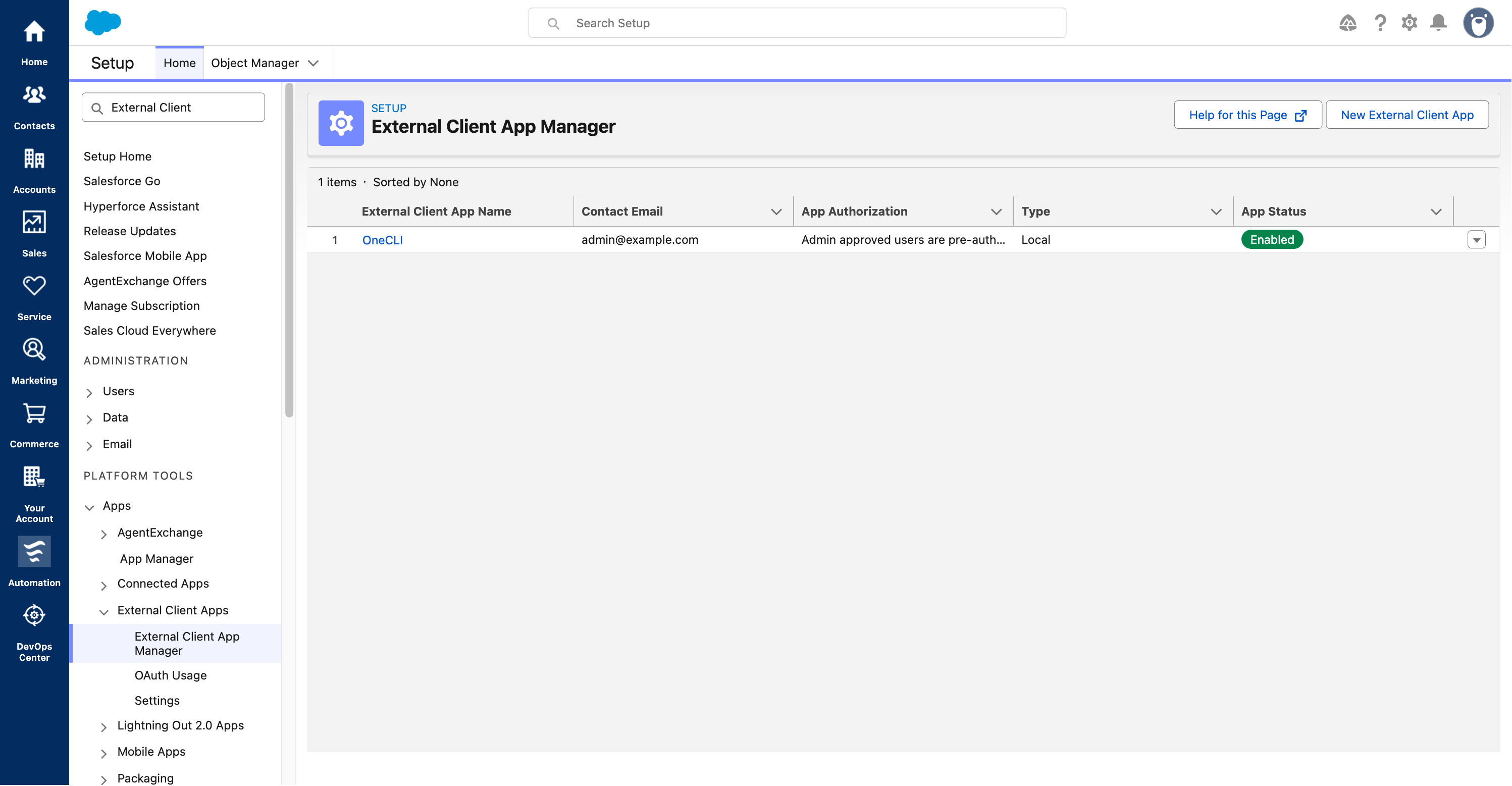
Open the External Client App Manager.
- 1. Click New External Client App.
Set the callback and scopes
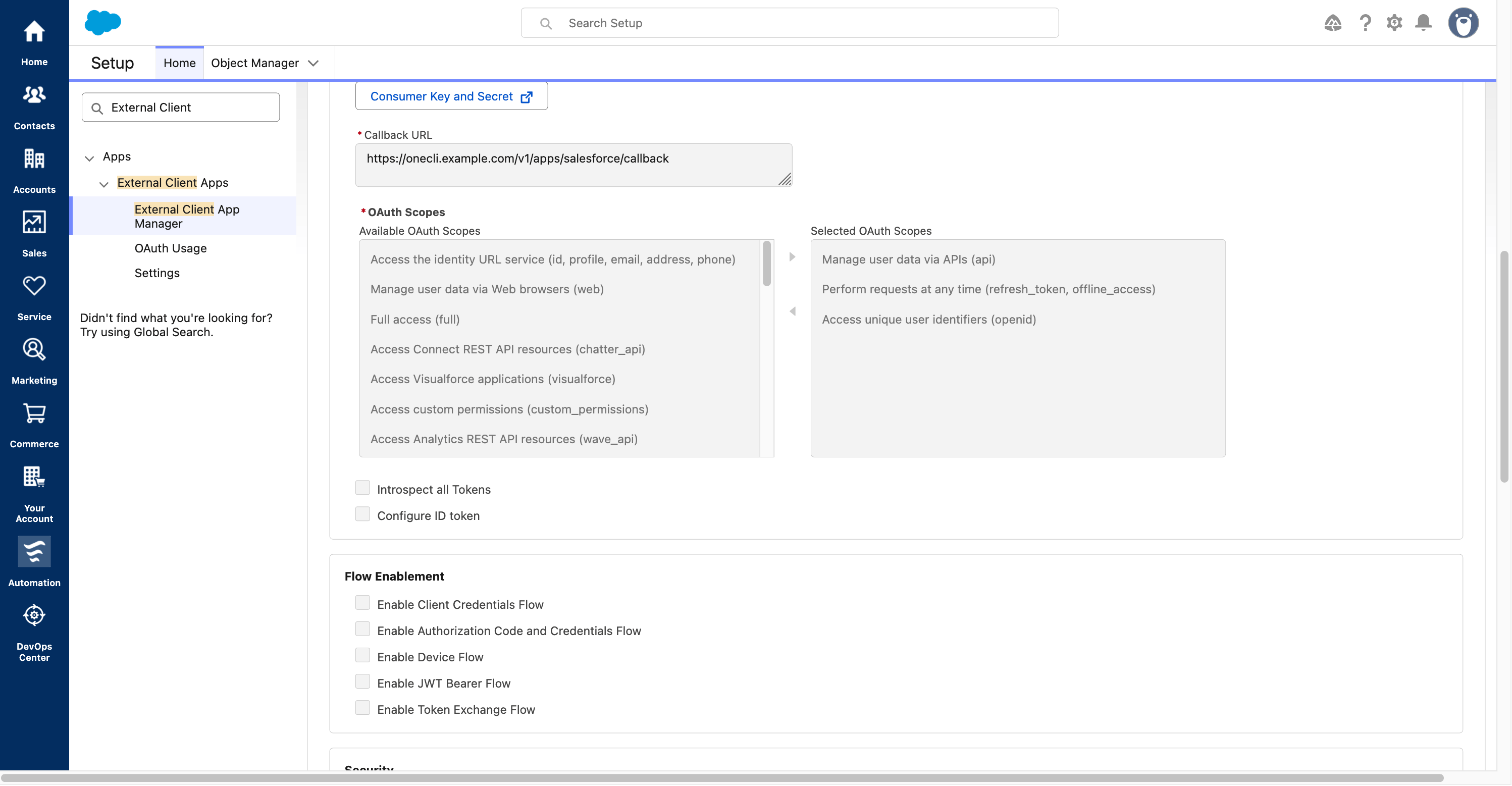
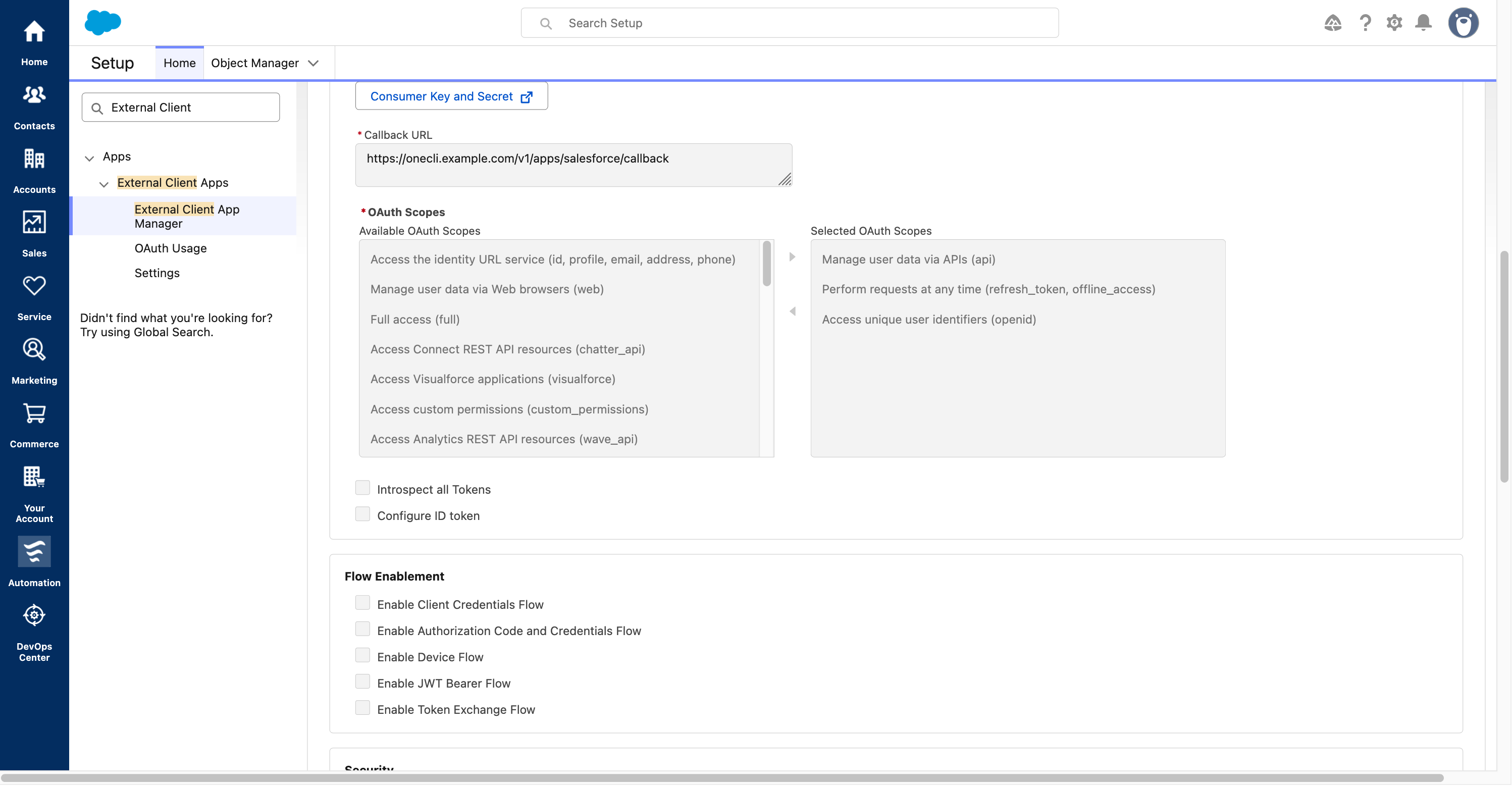
Register your callback and select only the three required scopes.
- 1. Paste the exact Redirect URI from Buckle into Callback URL.
- 2. Add only these scopes: api, refresh_token / offline_access, and openid.
Keep security protections enabled
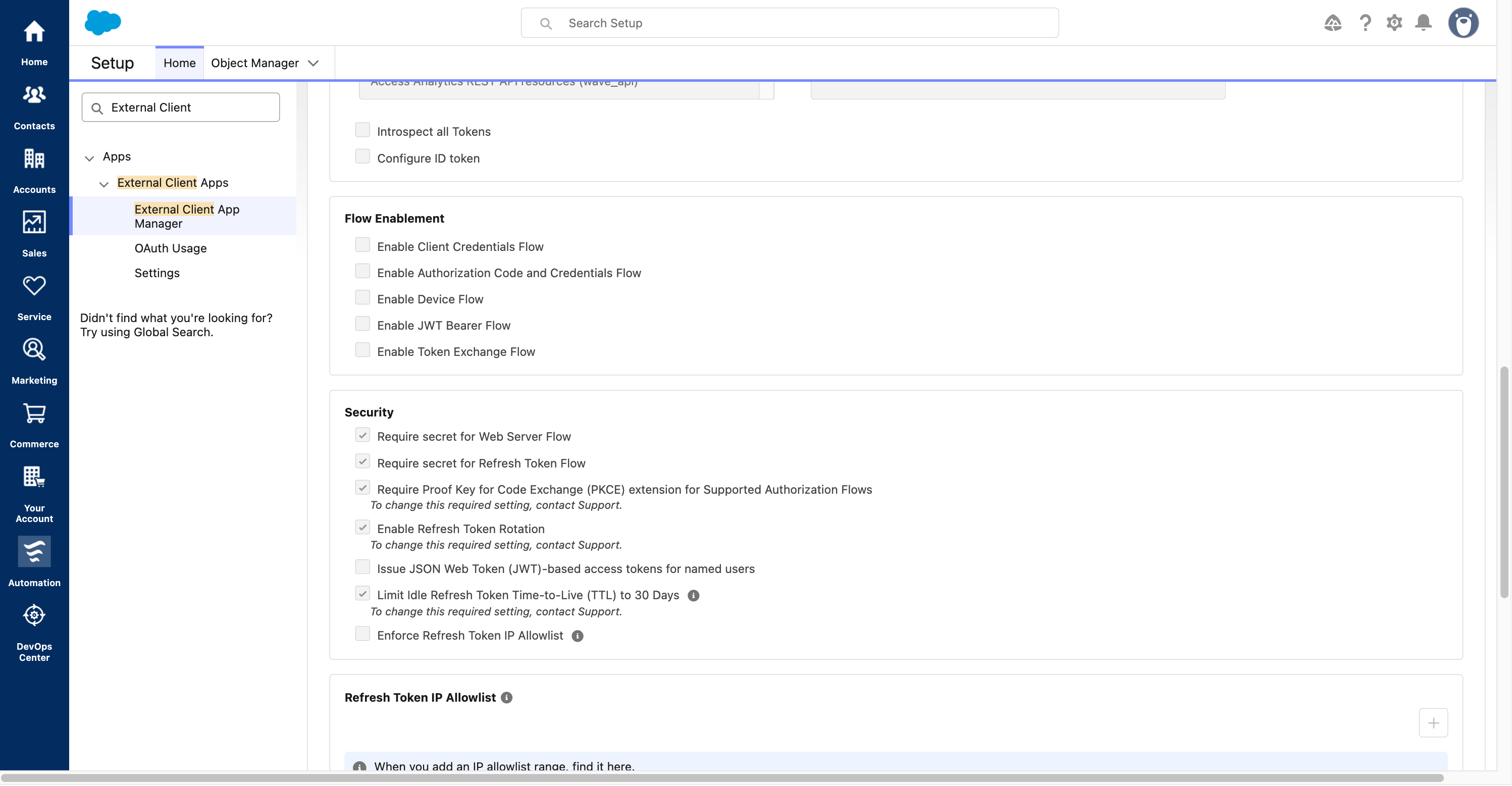
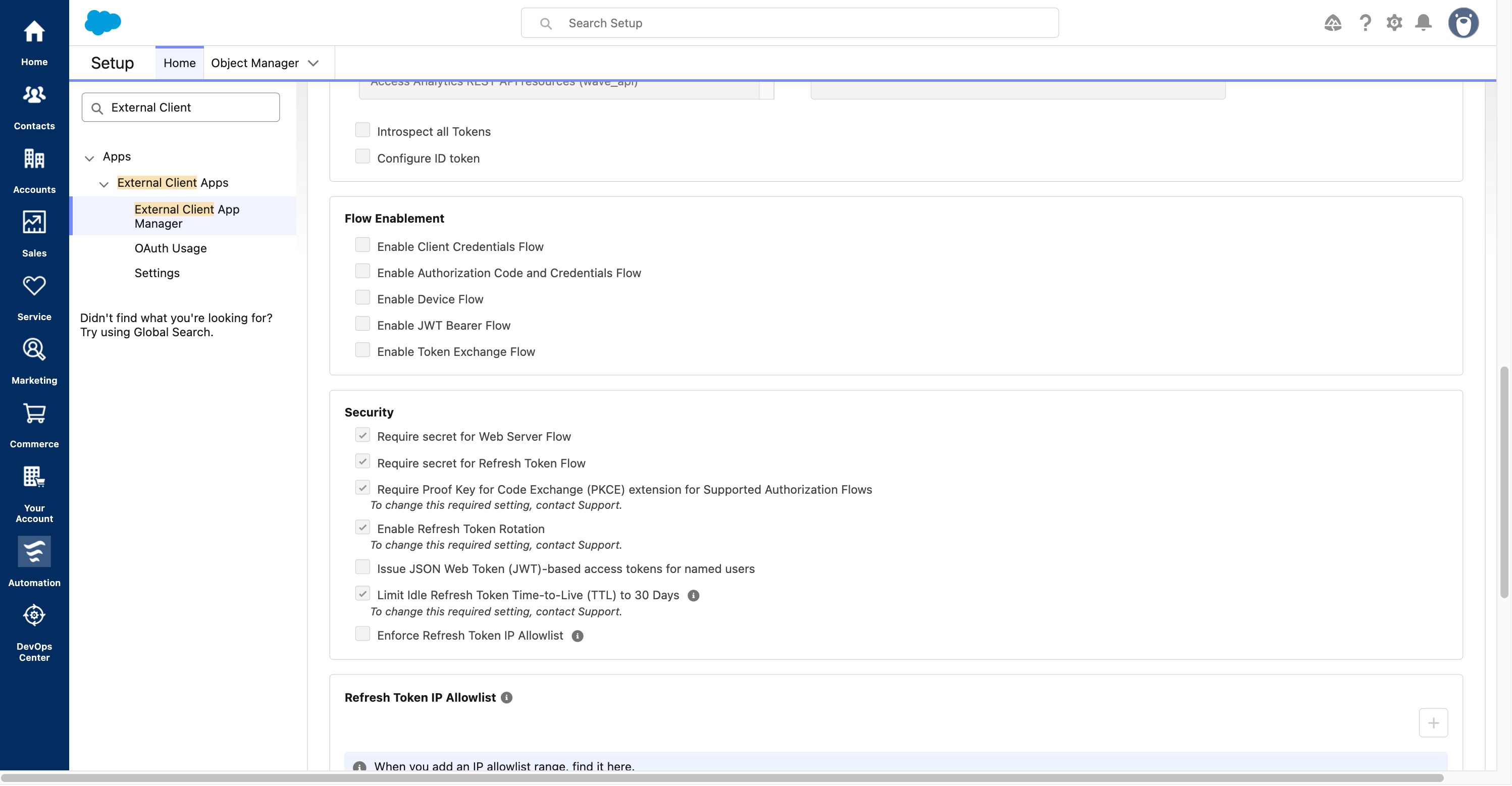
Keep client-secret requirements, PKCE, and refresh-token rotation enabled.
- 1. Enable both Require secret options.
- 2. Keep PKCE enabled. Buckle uses S256.
- 3. Keep Refresh Token Rotation enabled. Salesforce may require these settings.
Copy consumer credentials
Open consumer details without exposing credentials in this guide.
- 1. Click Consumer Key and Secret and complete any identity verification.
production or sandbox, according to the Salesforce organization, not where Buckle is hosted.Connect and test in Buckle
- In Buckle, confirm the credentials, Environment, and Redirect URI, click Save credentials, then Connect Salesforce.
- Sign in as the connecting Salesforce user. Confirm Buckle shows Connected with the expected account and instance.
- Grant the connection to the intended agent through Agent access or the agent’s Apps settings.
- For a read-only first test, allow the needed read tools, set Write / delete to Never, and save. The
apiscope is not read-only. - Ask the agent: “Use my connected Salesforce account to make a fresh request listing available CRM objects. Do not create, update, or delete records.”
Restrict who can authorize the app (optional)
Optional: allow only admin-approved users
Optional: allow only admin-approved users
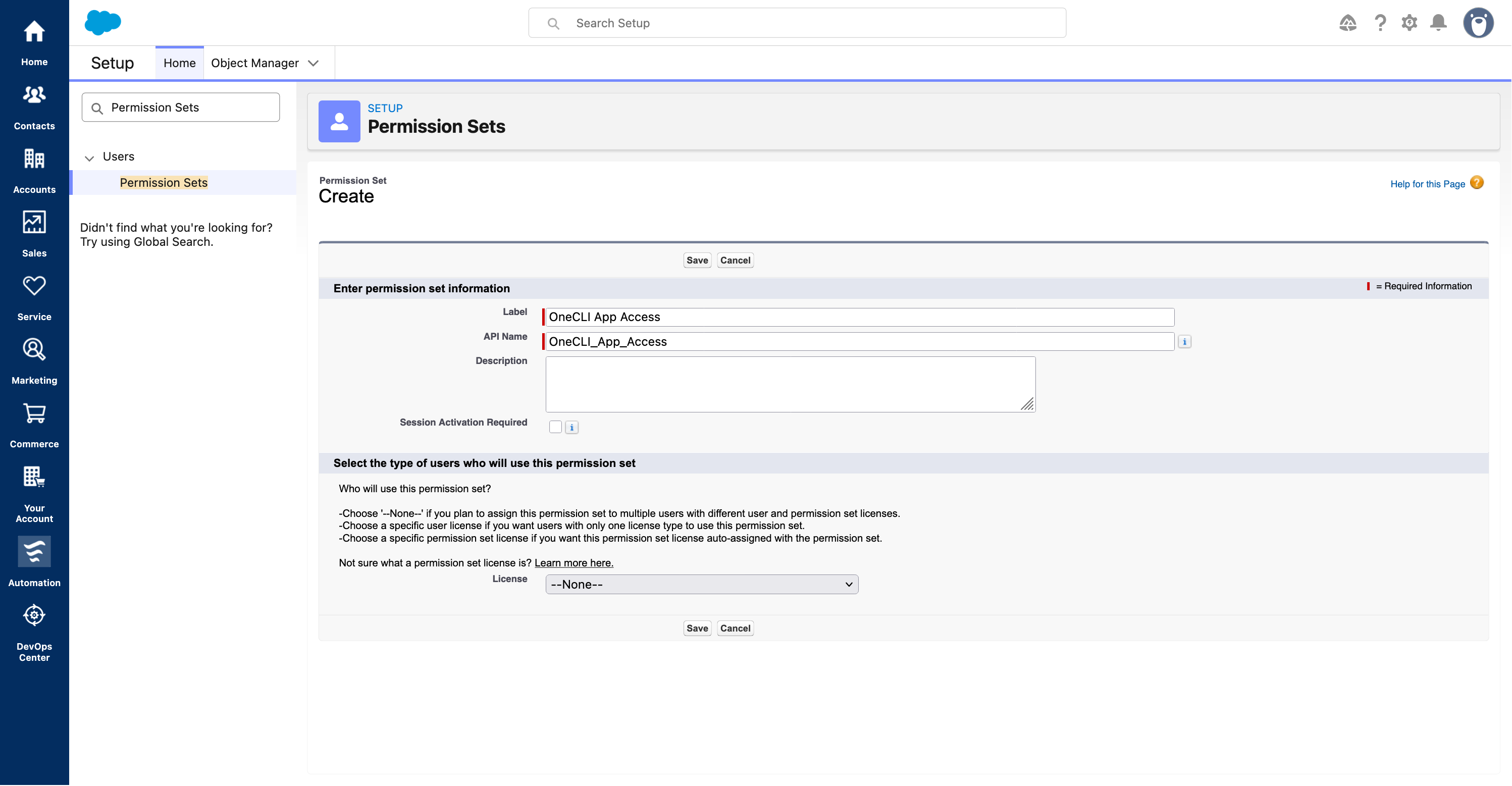
Create a permission set
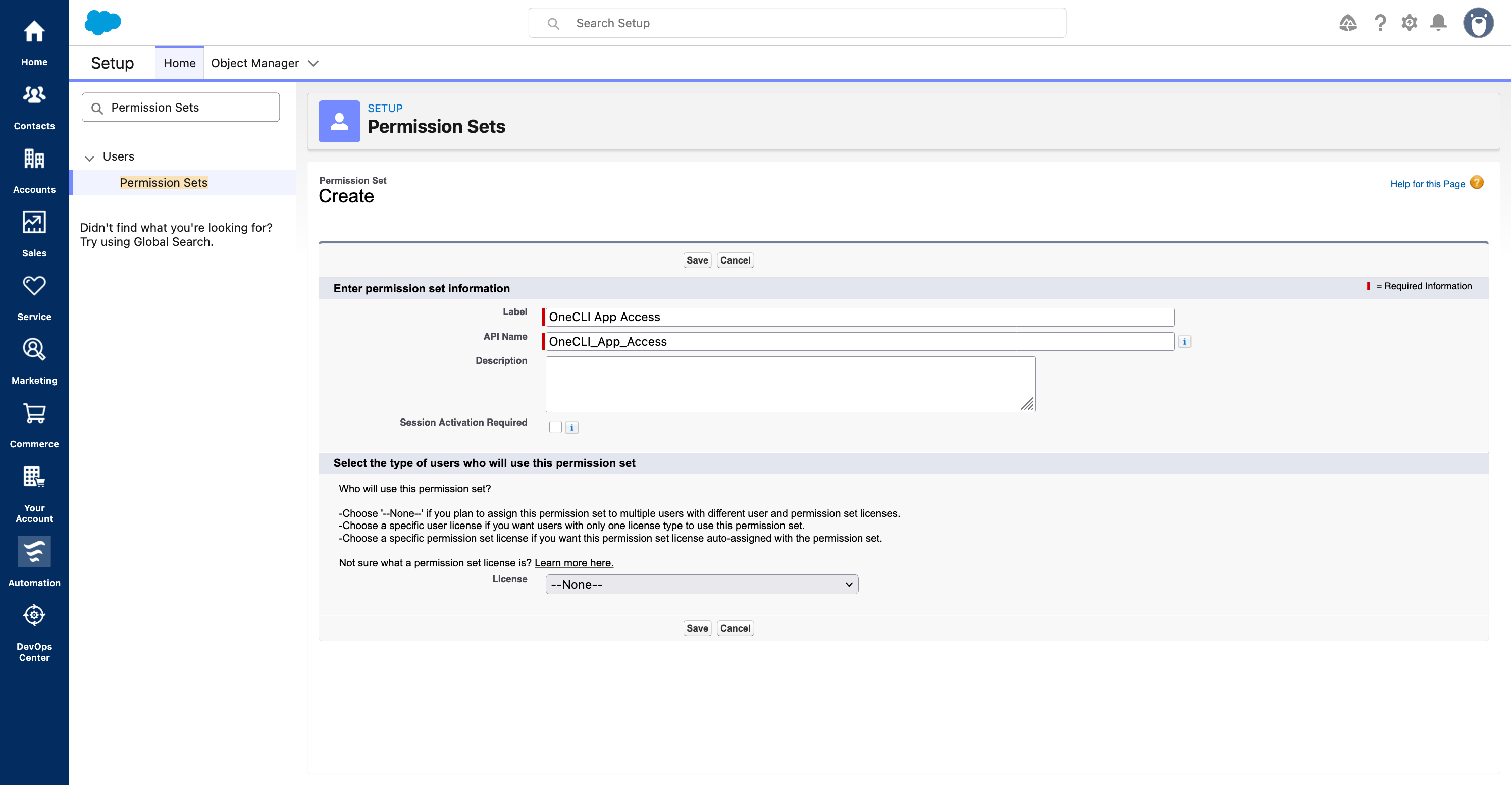
Create a dedicated permission set without adding unrelated privileges.
- 1. Set Label to
Buckle App Access. Keep the generated API name. - 2. Leave Session Activation Required unchecked.
- 3. Set License to —None—.
- 4. Click Save.
Link the permission set
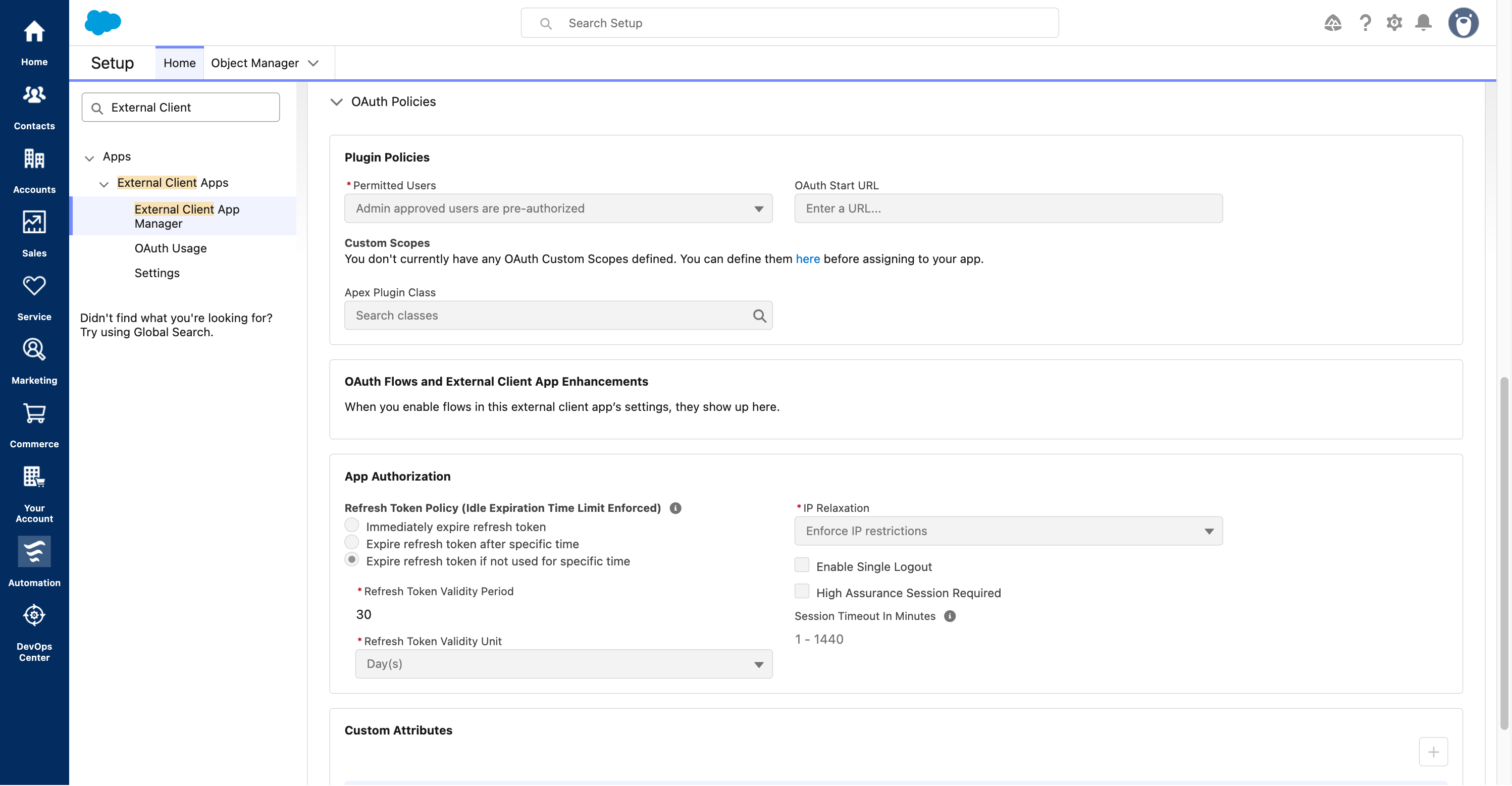
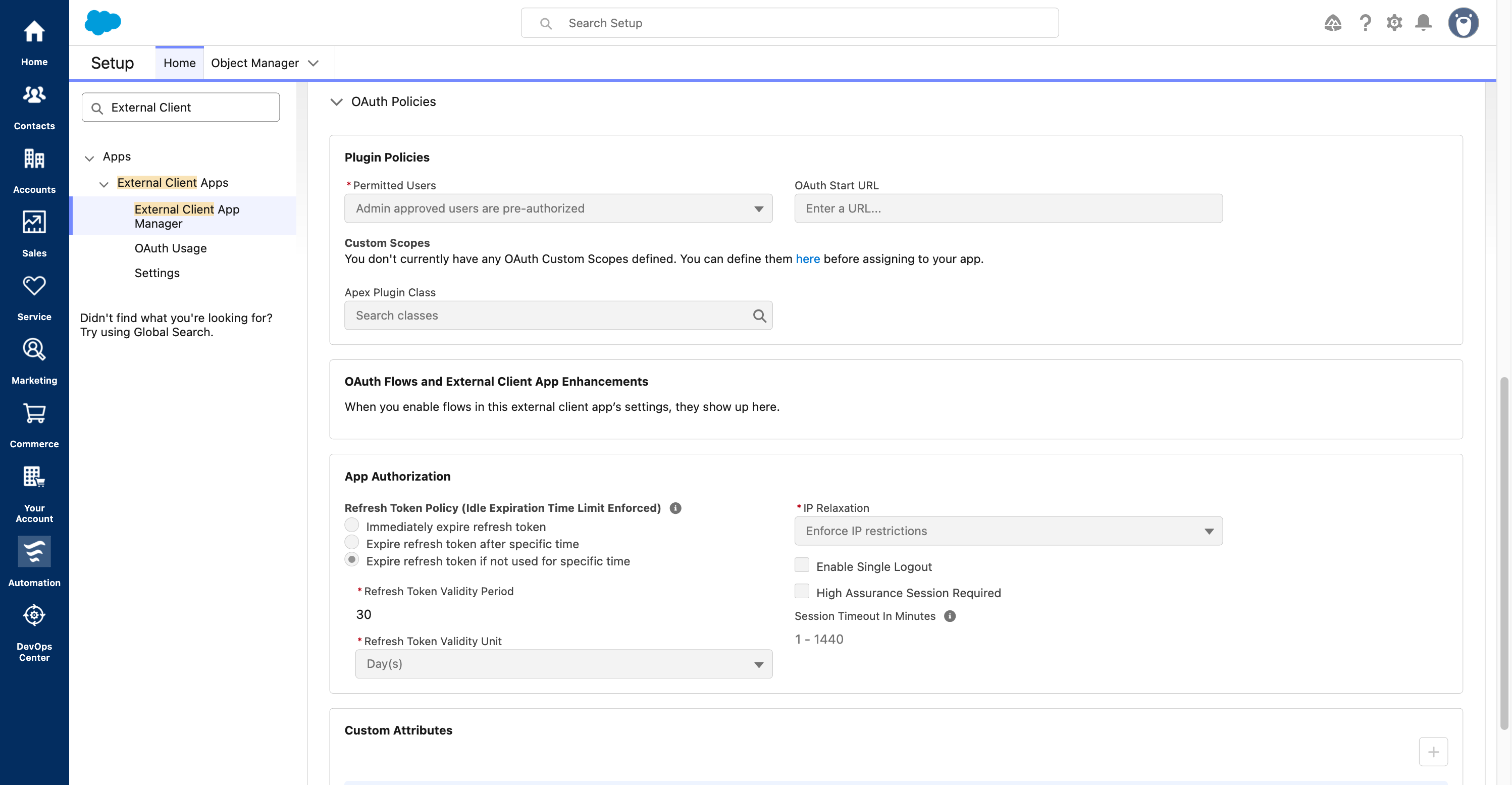
Require administrator-approved users.
- 1. Under OAuth Policies, set Permitted Users to Admin approved users are pre-authorized.
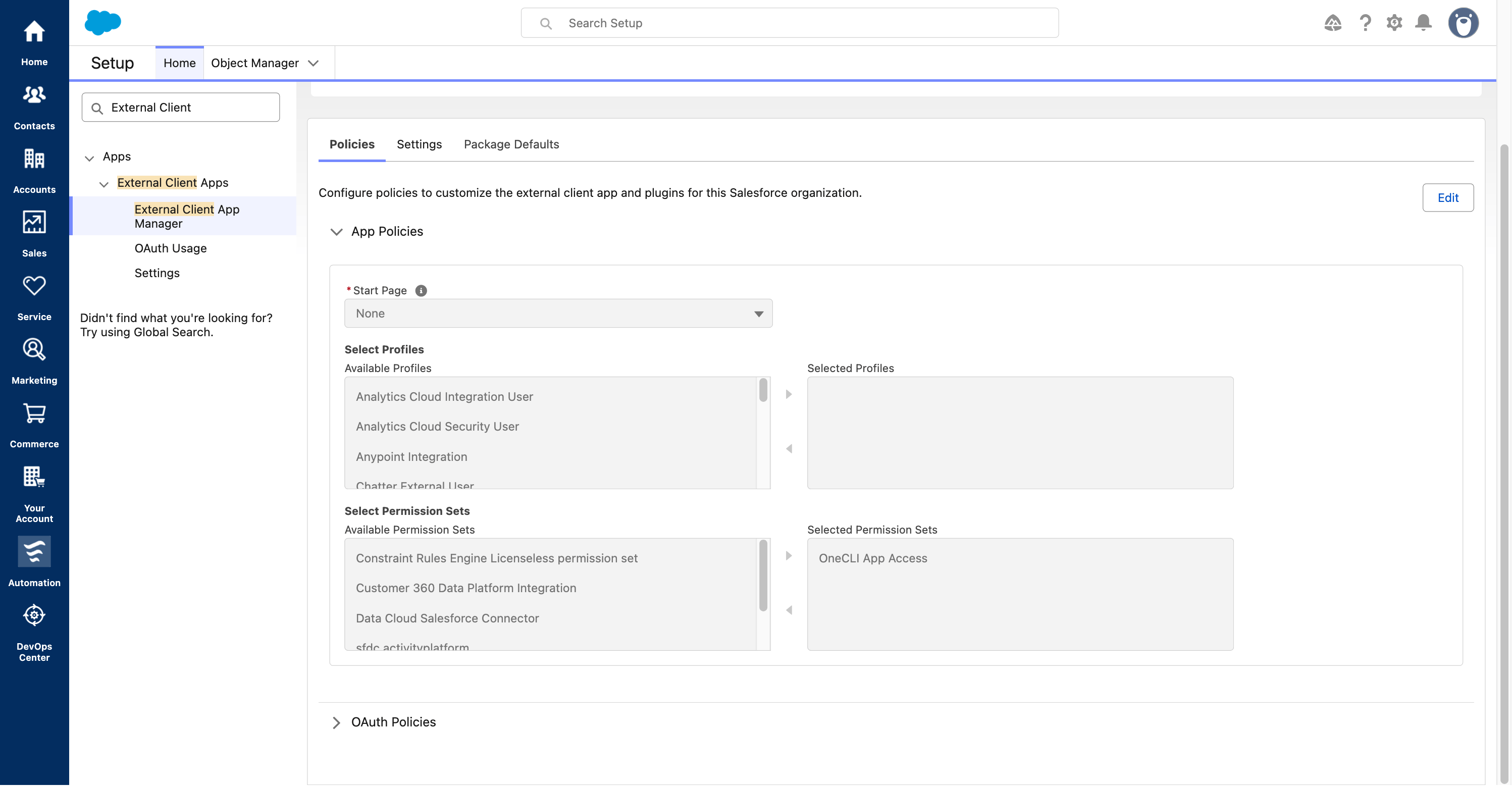
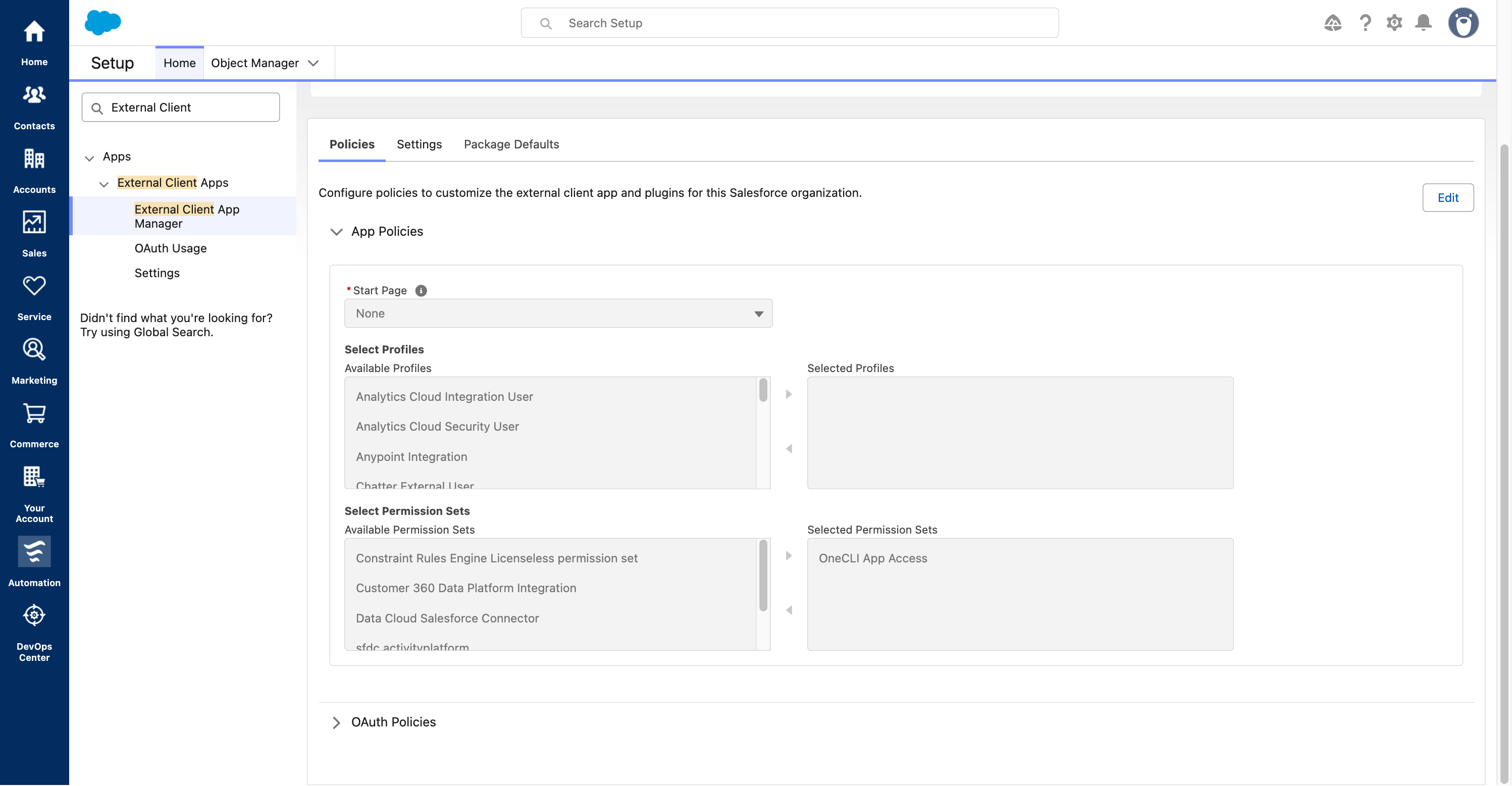
Link Buckle App Access to the External Client App.
- 1. Under App Policies, select Buckle App Access on the left and click the right arrow.
- 2. Confirm it appears in Selected Permission Sets, then save.
Assign the connecting user
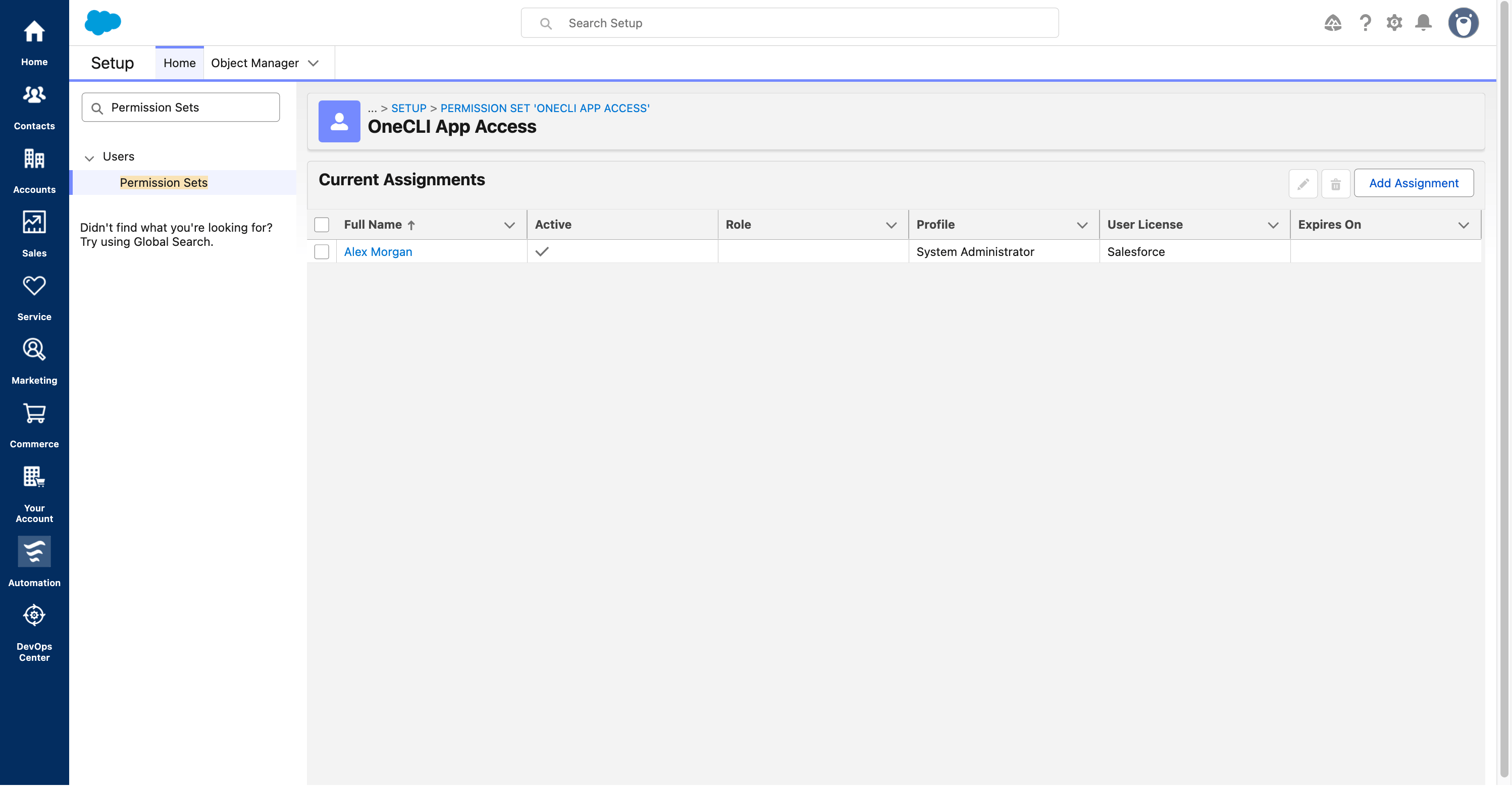
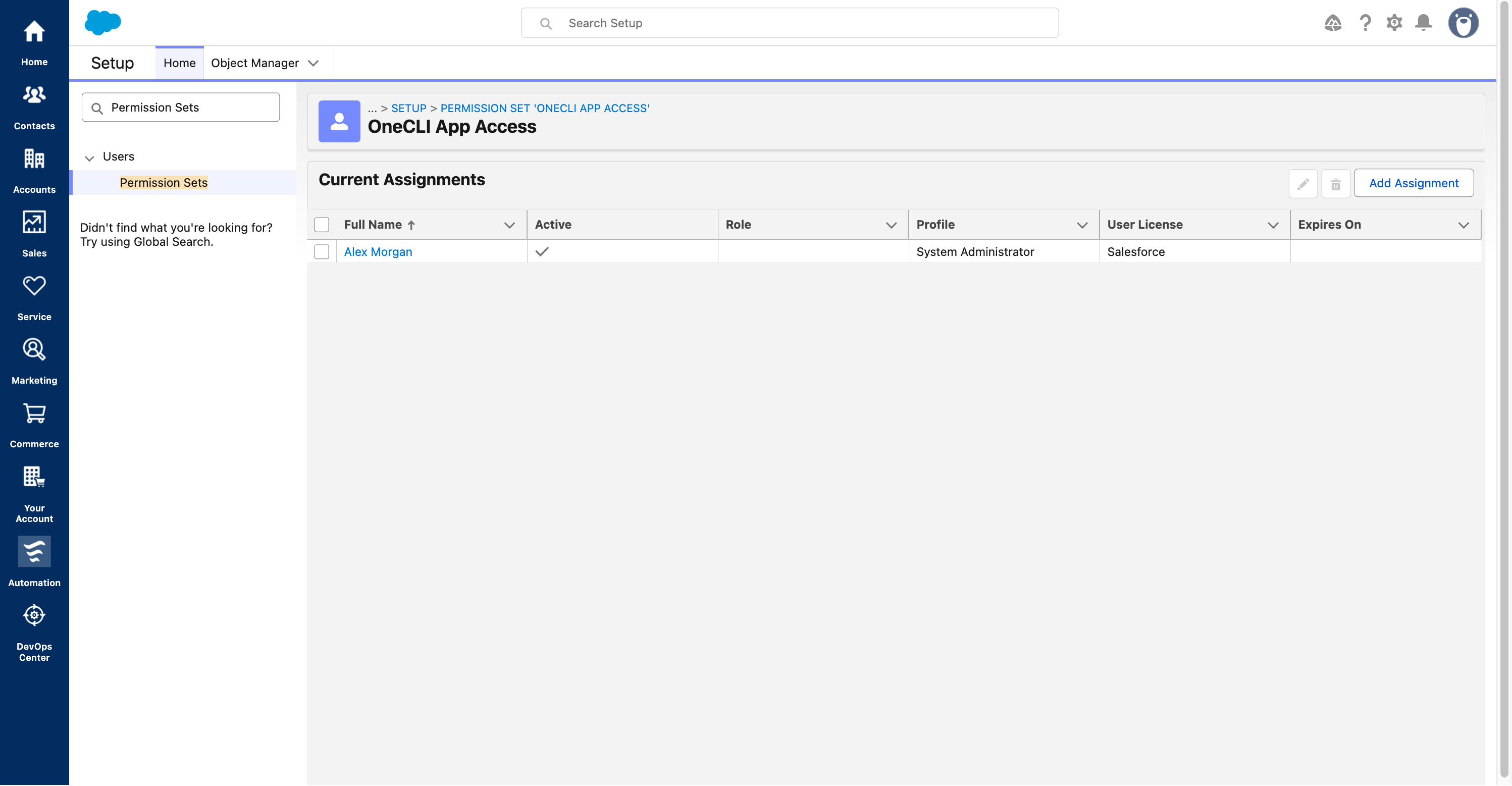
Assign the permission set to the user who will authorize Buckle.
- 1. Click Add Assignment, select the exact user who will sign in to Salesforce from Buckle, then click Next.
- 2. After assigning, confirm that user appears here. The example’s administrator profile is not required.
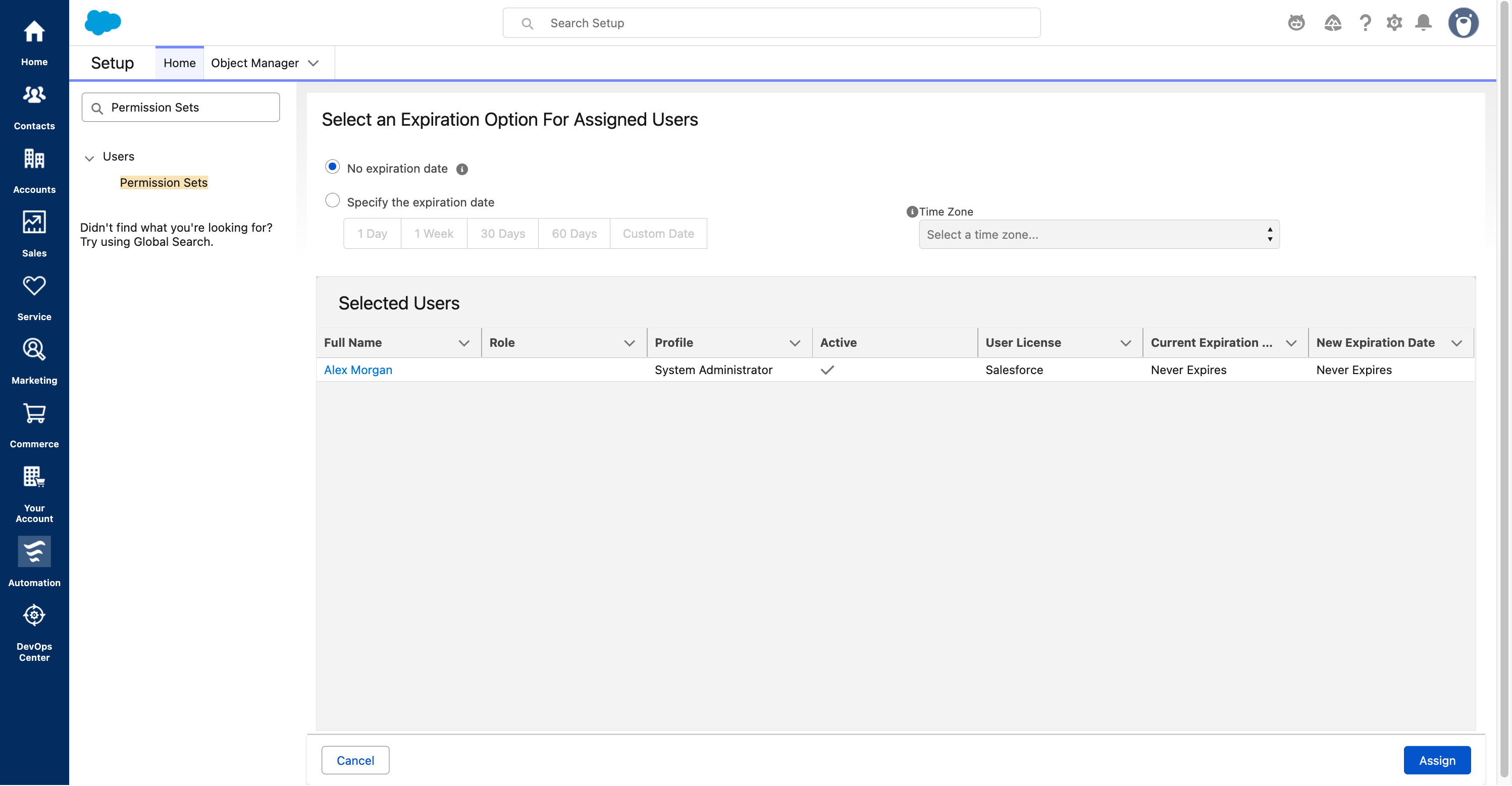
Choose an assignment expiration that follows your organization’s policy.
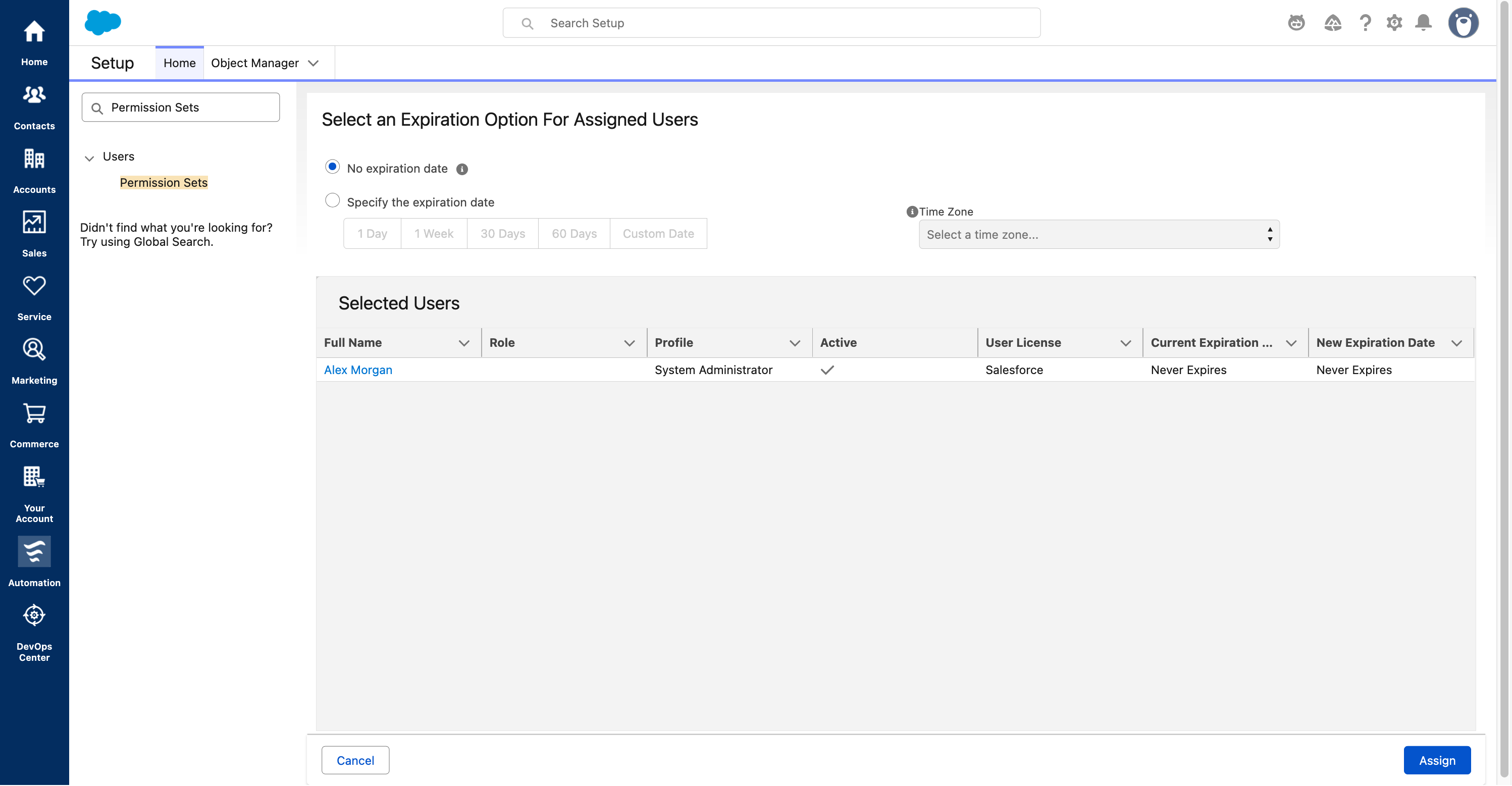
- 1. Choose No expiration date only if ongoing access is approved.
- 2. Otherwise, set the expiration required by your organization.
- 3. Verify the user and expiration, then click Assign → Done.
Troubleshooting
User is not admin approved / OAUTH_APP_ACCESS_DENIED
User is not admin approved / OAUTH_APP_ACCESS_DENIED
Redirect URI mismatch
Redirect URI mismatch
Invalid client or exposed secret
Invalid client or exposed secret
Expired or revoked refresh token
Expired or revoked refresh token
Connected, but the agent cannot use Salesforce
Connected, but the agent cannot use Salesforce
API, IP, or permission error
API, IP, or permission error
FAQ
Do I need my own Salesforce app on Buckle Cloud?
Do I need my own Salesforce app on Buckle Cloud?
Does the agent see Salesforce tokens or the Consumer Secret?
Does the agent see Salesforce tokens or the Consumer Secret?