Give agents access to only selected repos with a GitHub App. Buckle mints short-lived installation tokens and injects them, so agents never see them.
Overview
The GitHub App integration provides fine-grained, organization-approved access to repositories and resources. Unlike the GitHub OAuth integration which uses personal access tokens, GitHub Apps are installed at the organization or user level with explicit repository and permission grants.This is the recommended approach for teams that need organizational control over what repositories and permissions agents can access.
What you will set up
A GitHub App with the permissions your agents need
An installation on the repositories agents should reach
Short-lived installation tokens generated and injected by Buckle
Setup
1
Create a GitHub App
Go to your GitHub organization settings (or personal settings) > Developer settings > GitHub Apps > New GitHub App.Configure the app with the permissions your agents need:
Permission
Access
Description
Contents
Read & Write
Code, commits, and branches
Pull requests
Read & Write
Create, review, and merge PRs
Issues
Read & Write
Create and manage issues
Actions
Read & Write
View runs and trigger workflows
Checks
Read & Write
Read CI results, create check runs
Metadata
Read
Repository metadata (always required)
Generate a private key from the app settings page.
2
Install the app
Install the GitHub App on your organization or user account. Choose which repositories to grant access to. You can select all repositories or specific ones.
3
Connect in Buckle
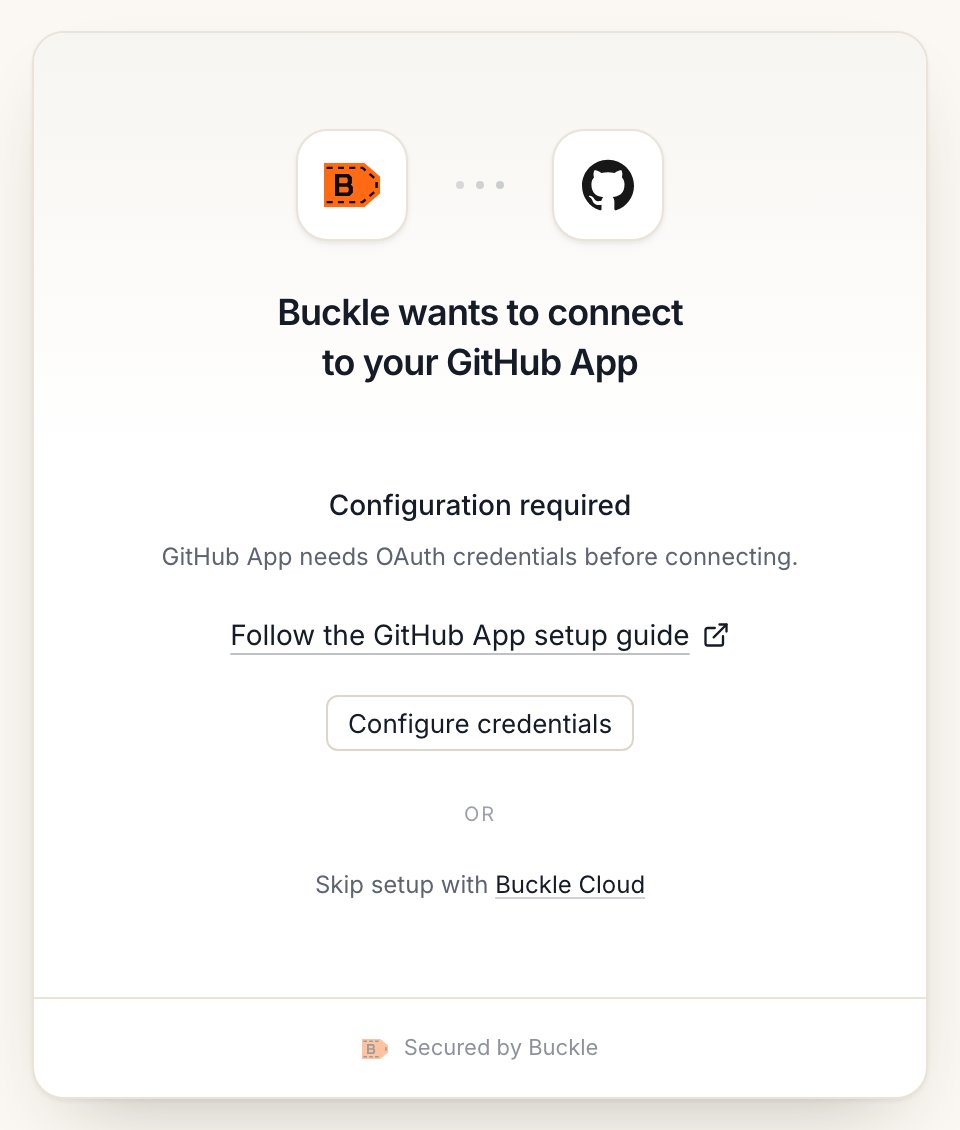
Open the Buckle dashboard, go to Settings > Apps > GitHub App, and provide:
The GitHub App connect window on Buckle Cloud.
App ID: The numeric ID from your GitHub App settings
App Slug: The URL-friendly name from your GitHub App settings
Private Key: The PEM private key you generated
Buckle uses these to generate short-lived installation access tokens automatically.
How it works
Buckle stores your GitHub App credentials (App ID and private key)
When an agent sends a request to api.github.com, the gateway generates a JWT signed with the private key
The JWT is exchanged for a short-lived installation access token (expires in 1 hour)
The access token is injected into the request as an Authorization header
Expired tokens are refreshed automatically
Agents never see the private key or raw tokens.
GitHub App vs GitHub OAuth
Feature
GitHub App
GitHub OAuth
Authorization
Org admin installs the app
Individual user authorizes
Repository scope
Explicit per-repo grants
All repos the user can access
Token lifetime
1 hour (auto-refreshed)
Long-lived
Permissions
Fine-grained per-resource
Scope-based
Best for
Teams, CI/CD, org-controlled access
Personal use, quick setup
Self-hosted: use your own GitHub App
Skip this section on Buckle Cloud unless you want your own GitHub App. On self-hosted Buckle without GITHUB_APP_ID set, this is required. You can enter the app in the dashboard, or set it once for the whole server.
1. Create the GitHub App
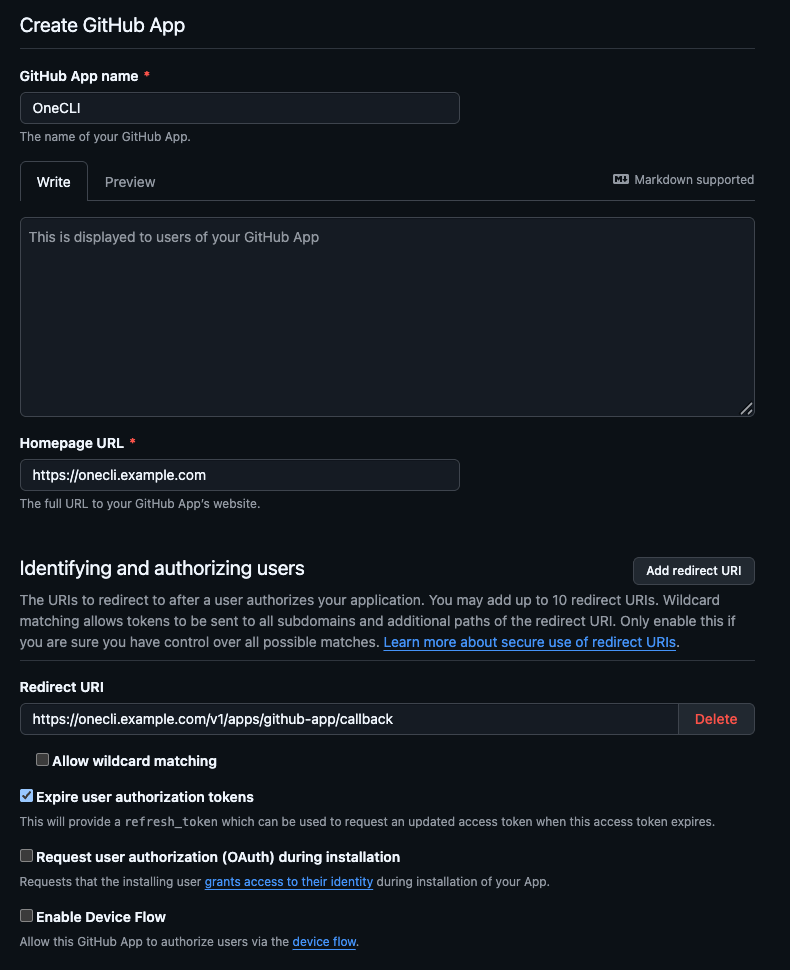
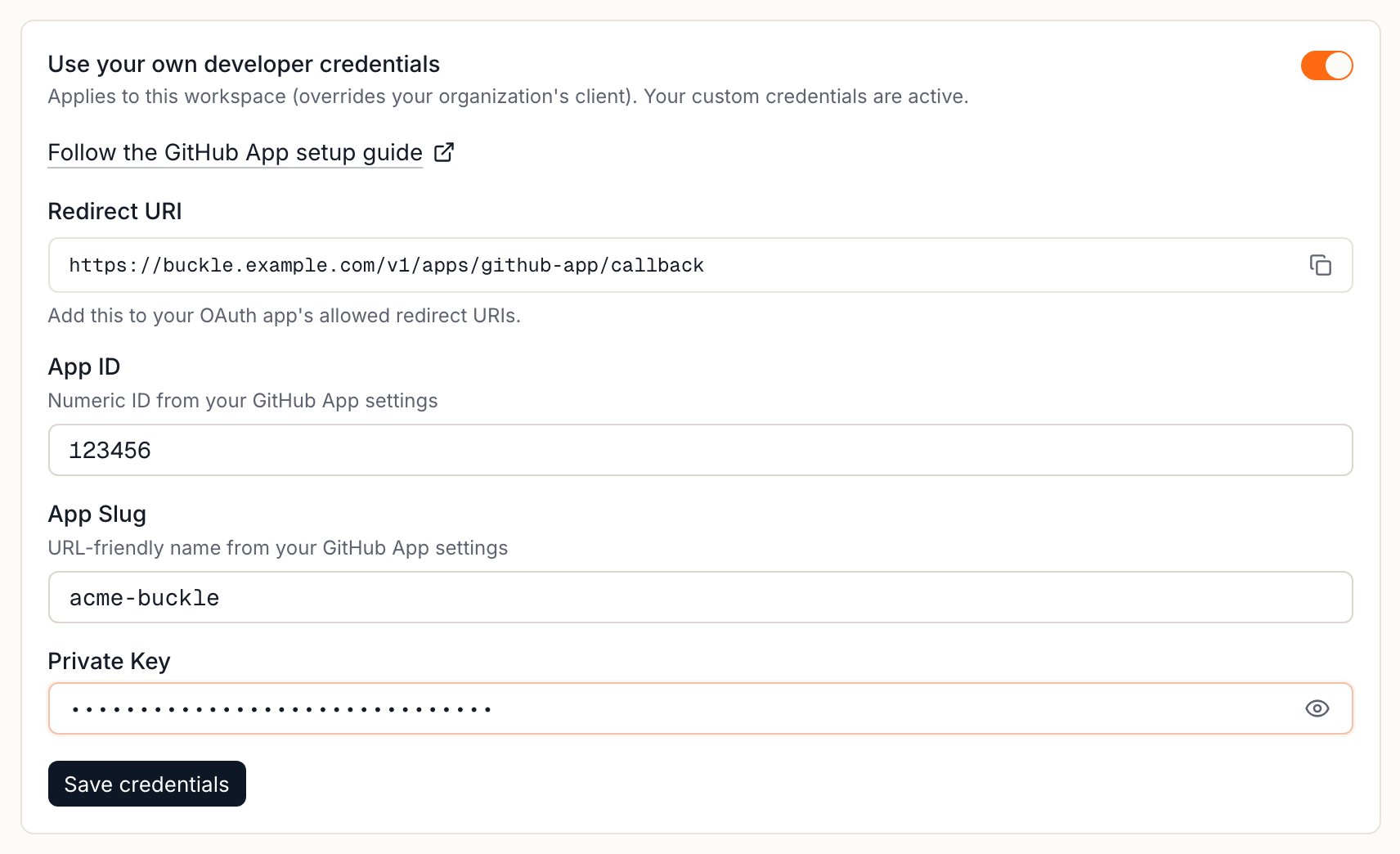
In GitHub, open Settings > Developer settings > GitHub Apps > New GitHub App (use your organization’s settings to own it there). Name it, set the homepage URL, and choose the repository permissions your agents need.In Buckle, open Settings > Apps > GitHub App > Custom credentials and copy the Redirect URI. In GitHub, paste it into Redirect URI and into Setup URL, and keep Redirect on update ticked. Under Webhook, untick Active: Buckle doesn’t use GitHub webhooks, so no webhook URL is needed. Then select Create GitHub App.
The new GitHub App form with the Buckle Redirect URI. Fill Setup URL and untick Webhook Active further down the same form.
Copy the Redirect URI from Custom credentials in Buckle.
2. Generate a private key
On the app’s page, select Generate a private key. GitHub downloads a .pem file.
3. Add the app to Buckle
Paste the app into Settings > Apps > GitHub App > Custom credentials:
Field
Value
App ID
The numeric App ID on the app’s page
App Slug
The app’s URL name, from github.com/apps/<slug>
Private Key
The contents of the .pem file
Select Save credentials. To set one app for the whole server instead, set GITHUB_APP_ID, GITHUB_APP_SLUG, and GITHUB_APP_PRIVATE_KEY and restart Buckle.
4. Connect
Open Settings > Apps > GitHub App and select Connect. GitHub asks which account and repositories to install the app on.
Controlling access
Access is per agent: grant the connection to each agent that needs it, choosing per tool what runs freely, what needs human approval, and what stays blocked — a read-only agent is a single grant. Organization rules add guardrails on top, like rate limits and blanket blocks. Everything is checked before credential injection, so a blocked request never reaches GitHub.
FAQ
Do I need to rotate GitHub App tokens?
No. Buckle generates short-lived installation access tokens from the app’s private key and refreshes them automatically.
Does the agent see the private key or token?
No. Both stay in Buckle, and the gateway injects the token at the proxy. See How it works.
GitHub App or GitHub OAuth?
Use the GitHub App when an organization needs to approve access and limit it to selected repositories. See GitHub App vs GitHub OAuth.
How do I change which repos an agent can reach?
Edit the app’s installation in GitHub to add or remove repositories. Then use per-agent access to choose which agents get the connection.
{"docsConfig":{"theme":"mint","$schema":"https://mintlify.com/docs.json","name":"Buckle","colors":{"primary":"#ff6a13","light":"#ff8236","dark":"#e55e0f"},"logo":{"light":"https://mintcdn.com/onecli-17d3f772/5_AFCR2UNaqNo0AT/logo/logo-full-light.svg?fit=max\u0026auto=format\u0026n=5_AFCR2UNaqNo0AT\u0026q=85\u0026s=30ceea1dd3505e0e9dea50b544521ced","dark":"https://mintcdn.com/onecli-17d3f772/5_AFCR2UNaqNo0AT/logo/logo-full-dark.svg?fit=max\u0026auto=format\u0026n=5_AFCR2UNaqNo0AT\u0026q=85\u0026s=120ef96cf376422549781454d97dd810","href":"https://buckle.dev"},"favicon":"https://mintcdn.com/onecli-17d3f772/hJP3XqgFsBDnXHKy/favicon.svg?fit=max\u0026auto=format\u0026n=hJP3XqgFsBDnXHKy\u0026q=85\u0026s=ddda982106e5fd52c3815a54c183f4b1","appearance":{"default":"light"},"background":{"color":{"light":"#FAFAF9","dark":"#1A1918"}},"navbar":{"links":[{"href":"https://github.com/trybuckle/buckle","label":"GitHub"},{"href":"https://buckle.dev","label":"Install"}]},"footer":{"socials":{"github":"https://github.com/trybuckle"}},"fonts":{"heading":{"family":"Chakra Petch","weight":700,"source":"fonts/ChakraPetch-700.woff2","format":"woff2"}},"contextual":{"options":["copy","view","chatgpt","claude","perplexity","mcp","cursor","vscode"],"display":"header"},"styling":{"latex":false},"navigation":{"global":{"anchors":[{"anchor":"GitHub","icon":"https://mintlify.s3.us-west-1.amazonaws.com/onecli-17d3f772/images/github.svg","href":"https://github.com/buckle"}]},"pages":[]}},"deployment":{"deploymentMetadataValue":{"subdomain":"onecli-17d3f772","hasAudioNarration":false,"actualSubdomain":"onecli-17d3f772","customDomains":[],"gitSource":{"type":"github","owner":"trybuckle","repo":"buckle-docs","deployBranch":"main","contentDirectory":"","isPrivate":true,"mountPath":"","label":"","_id":"6af9ac749033d7e87e8c505a"},"entitlements":{"AI_CHAT":{"status":"DISABLED"}},"buildId":"6af9b4b9e79e0e5d703531fb","clientVersion":"0.0.4143","searchFilterCounts":[{"language":"default","tag":"API Reference","count":240},{"language":"default","tag":"Workspace","count":105},{"language":"default","tag":"Integrations","count":88},{"language":"default","tag":"All app connections","count":64},{"language":"default","tag":"Enterprise","count":57},{"language":"default","tag":"Organization","count":52},{"language":"default","tag":"Apps","count":29},{"language":"default","tag":"Channels","count":28},{"language":"default","tag":"Platform","count":21},{"language":"default","tag":"Guides","count":17}]},"assistantConfig":{"enableAskAiButton":false,"enableStarterQuestions":false,"enableContextualStarterQuestions":false,"enableAskAiSearchBar":true},"basePath":"/docs","hasChatPermissions":false,"hasWebMcpPermissions":false,"toggles":[{"name":"kill-isr","enabled":true,"variant":{"name":"disabled","enabled":false,"feature_enabled":true},"impressionData":false},{"name":"custom-rbac-roles","enabled":true,"variant":{"name":"disabled","enabled":false,"feature_enabled":true},"impressionData":false},{"name":"agent-mintlify-slack","enabled":true,"variant":{"name":"disabled","enabled":false,"feature_enabled":true},"impressionData":false},{"name":"agent-integrations-settings","enabled":true,"variant":{"name":"disabled","enabled":false,"feature_enabled":true},"impressionData":false},{"name":"rbac-expansion","enabled":true,"variant":{"name":"disabled","enabled":false,"feature_enabled":true},"impressionData":false},{"name":"automations-pr-grouping","enabled":true,"variant":{"name":"disabled","enabled":false,"feature_enabled":true},"impressionData":false},{"name":"custom-prefix","enabled":true,"variant":{"name":"disabled","enabled":false,"feature_enabled":true},"impressionData":false},{"name":"analytics-v7","enabled":true,"variant":{"name":"disabled","enabled":false,"feature_enabled":true},"impressionData":false},{"name":"user-flows-analytics","enabled":true,"variant":{"name":"disabled","enabled":false,"feature_enabled":true},"impressionData":false},{"name":"no-publish-flow","enabled":true,"variant":{"name":"disabled","enabled":false,"feature_enabled":true},"impressionData":false},{"name":"workos-onboarding","enabled":true,"variant":{"name":"disabled","enabled":false,"feature_enabled":true},"impressionData":false},{"name":"snapshot-serving-live","enabled":true,"variant":{"name":"disabled","enabled":false,"feature_enabled":true},"impressionData":false},{"name":"stripTemperatureMiddleware","enabled":true,"variant":{"name":"disabled","enabled":false,"feature_enabled":true},"impressionData":false},{"name":"support-platform-pylon-zendesk","enabled":true,"variant":{"name":"disabled","enabled":false,"feature_enabled":true},"impressionData":false},{"name":"snapshot-serving","enabled":true,"variant":{"name":"disabled","enabled":false,"feature_enabled":true},"impressionData":false},{"name":"instant-rollback","enabled":true,"variant":{"name":"disabled","enabled":false,"feature_enabled":true},"impressionData":false},{"name":"granular-notifications-server","enabled":true,"variant":{"name":"disabled","enabled":false,"feature_enabled":true},"impressionData":false},{"name":"granular-notifications","enabled":true,"variant":{"name":"disabled","enabled":false,"feature_enabled":true},"impressionData":false},{"name":"automations-fable","enabled":true,"variant":{"name":"disabled","enabled":false,"feature_enabled":true},"impressionData":false},{"name":"fixed-ai-action-pricing","enabled":true,"variant":{"name":"disabled","enabled":false,"feature_enabled":true},"impressionData":false},{"name":"automation-resolve-merge-conflict","enabled":true,"variant":{"name":"disabled","enabled":false,"feature_enabled":true},"impressionData":false},{"name":"scoped-publishing","enabled":true,"variant":{"name":"disabled","enabled":false,"feature_enabled":true},"impressionData":false},{"name":"mintql","enabled":true,"variant":{"name":"disabled","enabled":false,"feature_enabled":true},"impressionData":false},{"name":"page-level-analytics","enabled":true,"variant":{"name":"disabled","enabled":false,"feature_enabled":true},"impressionData":false},{"name":"editor-version-history-v2","enabled":true,"variant":{"name":"disabled","enabled":false,"feature_enabled":true},"impressionData":false},{"name":"billing-page-v2","enabled":true,"variant":{"name":"disabled","enabled":false,"feature_enabled":true},"impressionData":false},{"name":"full-page-search","enabled":true,"variant":{"name":"disabled","enabled":false,"feature_enabled":true},"impressionData":false},{"name":"workspace-projects","enabled":true,"variant":{"name":"disabled","enabled":false,"feature_enabled":true},"impressionData":false},{"name":"assistant-v5","enabled":true,"variant":{"name":"disabled","enabled":false,"feature_enabled":true},"impressionData":false},{"name":"fork-pr-previews","enabled":true,"variant":{"name":"disabled","enabled":false,"feature_enabled":true},"impressionData":false},{"name":"revalidation-jwt","enabled":true,"variant":{"name":"disabled","enabled":false,"feature_enabled":true},"impressionData":false},{"name":"workos-sso-scim","enabled":true,"variant":{"name":"disabled","enabled":false,"feature_enabled":true},"impressionData":false},{"name":"hobby-abuse-scan","enabled":true,"variant":{"name":"disabled","enabled":false,"feature_enabled":true},"impressionData":false},{"name":"dashboard-inbox","enabled":true,"variant":{"name":"disabled","enabled":false,"feature_enabled":true},"impressionData":false},{"name":"workos-signup","enabled":true,"variant":{"name":"disabled","enabled":false,"feature_enabled":true},"impressionData":false},{"name":"turbopuffer-dual-write","enabled":true,"variant":{"name":"disabled","enabled":false,"feature_enabled":true},"impressionData":false},{"name":"workos-enabled","enabled":true,"variant":{"name":"disabled","enabled":false,"feature_enabled":true},"impressionData":false},{"name":"approve-review-flow","enabled":true,"variant":{"name":"disabled","enabled":false,"feature_enabled":true},"impressionData":false},{"name":"editor-metadata","enabled":true,"variant":{"name":"disabled","enabled":false,"feature_enabled":true},"impressionData":false},{"name":"sso-setup-deadline-banner","enabled":true,"variant":{"name":"disabled","enabled":false,"feature_enabled":true},"impressionData":false},{"name":"turbopuffer-serve","enabled":true,"variant":{"name":"disabled","enabled":false,"feature_enabled":true},"impressionData":false},{"name":"live-agents","enabled":true,"variant":{"name":"disabled","enabled":false,"feature_enabled":true},"impressionData":false},{"name":"llms-txt-v2","enabled":true,"variant":{"name":"disabled","enabled":false,"feature_enabled":true},"impressionData":false}],"googleFontsInlined":false},"customCss":[{"filePath":"style.css","content":"a.nav-anchor div.mr-4.rounded-md{--tw-ring-color: transparent !important;--tw-ring-shadow: 0 0 0 0 transparent !important;--tw-ring-offset-shadow: 0 0 0 0 transparent !important;box-shadow:none!important;background:transparent!important;filter:none!important;transition:opacity 0.15s ease!important}a.nav-anchor:hover div.mr-4.rounded-md{--tw-ring-color: transparent !important;--tw-ring-shadow: 0 0 0 0 transparent !important;--tw-ring-offset-shadow: 0 0 0 0 transparent !important;box-shadow:none!important;background:transparent!important;filter:none!important;opacity:0.7!important}a.nav-anchor div.mr-4.rounded-md img{opacity:1!important;filter:none!important;background:transparent!important}a.nav-anchor:hover div.mr-4.rounded-md img{opacity:1!important;filter:none!important;background:transparent!important}.dark a.nav-anchor div.mr-4.rounded-md img,[data-theme=\"dark\"] a.nav-anchor div.mr-4.rounded-md img{filter:invert(1)!important}"}],"page":{"pagePath":"integrations/github-app","slug":"/integrations/github-app","pageMetadata":{"title":"Org-Approved GitHub Repo Access for AI Agents","sidebarTitle":"GitHub App","description":"Give agents access to only selected repos with a GitHub App. Buckle mints short-lived installation tokens and injects them, so agents never see them.","canonical":"https://buckle.dev/docs/integrations/github-app","href":"/integrations/github-app"},"description":{"compiledSource":"\"use strict\";\nconst {jsx: _jsx} = arguments[0];\nconst {useMDXComponents: _provideComponents} = arguments[0];\nfunction _createMdxContent(props) {\n const _components = {\n p: \"p\",\n ..._provideComponents(),\n ...props.components\n };\n return _jsx(_components.p, {\n children: \"Give agents access to only selected repos with a GitHub App. Buckle mints short-lived installation tokens and injects them, so agents never see them.\"\n });\n}\nfunction MDXContent(props = {}) {\n const {wrapper: MDXLayout} = {\n ..._provideComponents(),\n ...props.components\n };\n return MDXLayout ? _jsx(MDXLayout, {\n ...props,\n children: _jsx(_createMdxContent, {\n ...props\n })\n }) : _createMdxContent(props);\n}\nreturn {\n default: MDXContent\n};\n","frontmatter":{},"scope":{}},"pageType":"default","mdx":{"mdxSource":{"compiledSource":"\"use strict\";const{Fragment:_Fragment,jsx:_jsx,jsxs:_jsxs}=arguments[0];const{useMDXComponents:_provideComponents}=arguments[0];function _createMdxContent(props){const _components={a:`a`,code:`code`,li:`li`,ol:`ol`,p:`p`,strong:`strong`,tbody:`tbody`,td:`td`,th:`th`,thead:`thead`,tr:`tr`,ul:`ul`,..._provideComponents(),...props.components},{Accordion,AccordionGroup,Frame,Heading,Info,OptimizedImage,Step,Steps,Table}=_components;if(!Accordion)_missingMdxReference(`Accordion`,true);if(!AccordionGroup)_missingMdxReference(`AccordionGroup`,true);if(!Frame)_missingMdxReference(`Frame`,true);if(!Heading)_missingMdxReference(`Heading`,true);if(!Info)_missingMdxReference(`Info`,true);if(!OptimizedImage)_missingMdxReference(`OptimizedImage`,true);if(!Step)_missingMdxReference(`Step`,true);if(!Steps)_missingMdxReference(`Steps`,true);if(!Table)_missingMdxReference(`Table`,true);return _jsxs(_Fragment,{children:[_jsx(Heading,{level:`2`,id:`overview`,children:`Overview`}),`\n`,_jsxs(_components.p,{children:[`The GitHub App integration provides fine-grained, organization-approved access to repositories and resources. Unlike the `,_jsx(_components.a,{href:`/integrations/github`,children:`GitHub OAuth integration`}),` which uses personal access tokens, GitHub Apps are installed at the organization or user level with explicit repository and permission grants.`]}),`\n`,_jsx(_components.p,{children:`This is the recommended approach for teams that need organizational control over what repositories and permissions agents can access.`}),`\n`,_jsx(Heading,{level:`2`,id:`what-you-will-set-up`,children:`What you will set up`}),`\n`,_jsxs(_components.ul,{children:[`\n`,_jsx(_components.li,{children:`A GitHub App with the permissions your agents need`}),`\n`,_jsx(_components.li,{children:`An installation on the repositories agents should reach`}),`\n`,_jsx(_components.li,{children:`Short-lived installation tokens generated and injected by Buckle`}),`\n`]}),`\n`,_jsx(Heading,{level:`2`,id:`setup`,children:`Setup`}),`\n`,_jsxs(Steps,{children:[_jsxs(Step,{title:`Create a GitHub App`,children:[_jsxs(_components.p,{children:[`Go to your GitHub organization settings (or personal settings) > `,_jsx(_components.strong,{children:`Developer settings`}),` > `,_jsx(_components.strong,{children:`GitHub Apps`}),` > `,_jsx(_components.strong,{children:`New GitHub App`}),`.`]}),_jsx(_components.p,{children:`Configure the app with the permissions your agents need:`}),_jsxs(Table,{children:[_jsx(_components.thead,{children:_jsxs(_components.tr,{children:[_jsx(_components.th,{children:`Permission`}),_jsx(_components.th,{children:`Access`}),_jsx(_components.th,{children:`Description`})]})}),_jsxs(_components.tbody,{children:[_jsxs(_components.tr,{children:[_jsx(_components.td,{children:`Contents`}),_jsx(_components.td,{children:`Read \u0026 Write`}),_jsx(_components.td,{children:`Code, commits, and branches`})]}),_jsxs(_components.tr,{children:[_jsx(_components.td,{children:`Pull requests`}),_jsx(_components.td,{children:`Read \u0026 Write`}),_jsx(_components.td,{children:`Create, review, and merge PRs`})]}),_jsxs(_components.tr,{children:[_jsx(_components.td,{children:`Issues`}),_jsx(_components.td,{children:`Read \u0026 Write`}),_jsx(_components.td,{children:`Create and manage issues`})]}),_jsxs(_components.tr,{children:[_jsx(_components.td,{children:`Actions`}),_jsx(_components.td,{children:`Read \u0026 Write`}),_jsx(_components.td,{children:`View runs and trigger workflows`})]}),_jsxs(_components.tr,{children:[_jsx(_components.td,{children:`Checks`}),_jsx(_components.td,{children:`Read \u0026 Write`}),_jsx(_components.td,{children:`Read CI results, create check runs`})]}),_jsxs(_components.tr,{children:[_jsx(_components.td,{children:`Metadata`}),_jsx(_components.td,{children:`Read`}),_jsx(_components.td,{children:`Repository metadata (always required)`})]})]})]}),_jsxs(_components.p,{children:[`Generate a `,_jsx(_components.strong,{children:`private key`}),` from the app settings page.`]})]}),_jsx(Step,{title:`Install the app`,children:_jsx(_components.p,{children:`Install the GitHub App on your organization or user account. Choose which repositories to grant access to. You can select all repositories or specific ones.`})}),_jsxs(Step,{title:`Connect in Buckle`,children:[_jsxs(_components.p,{children:[`Open the Buckle dashboard, go to `,_jsx(_components.strong,{children:`Settings`}),` > `,_jsx(_components.strong,{children:`Apps`}),` > `,_jsx(_components.strong,{children:`GitHub App`}),`, and provide:`]}),_jsx(Frame,{caption:`The GitHub App connect window on Buckle Cloud.`,children:_jsx(OptimizedImage,{src:`https://mintcdn.com/onecli-17d3f772/hJP3XqgFsBDnXHKy/images/integrations/github-app/buckle-connect-github-app.png?fit=max\u0026auto=format\u0026n=hJP3XqgFsBDnXHKy\u0026q=85\u0026s=a885fb63a6dd11f5250182ef9bcd1be2`,alt:`Buckle connect window for GitHub App on Cloud, showing the Connect to GitHub App button.`,\"data-og-width\":`960`,width:`960`,\"data-og-height\":`1130`,height:`1130`,\"data-path\":`images/integrations/github-app/buckle-connect-github-app.png`,\"data-optimize\":`true`,\"data-opv\":`3`,srcset:`https://mintcdn.com/onecli-17d3f772/hJP3XqgFsBDnXHKy/images/integrations/github-app/buckle-connect-github-app.png?w=280\u0026fit=max\u0026auto=format\u0026n=hJP3XqgFsBDnXHKy\u0026q=85\u0026s=844bb154537ad32857f5396445151cb0 280w, https://mintcdn.com/onecli-17d3f772/hJP3XqgFsBDnXHKy/images/integrations/github-app/buckle-connect-github-app.png?w=560\u0026fit=max\u0026auto=format\u0026n=hJP3XqgFsBDnXHKy\u0026q=85\u0026s=80251c5021f26cde0913d1eb2d22b1f7 560w, https://mintcdn.com/onecli-17d3f772/hJP3XqgFsBDnXHKy/images/integrations/github-app/buckle-connect-github-app.png?w=840\u0026fit=max\u0026auto=format\u0026n=hJP3XqgFsBDnXHKy\u0026q=85\u0026s=8958f614cb29ef259653eed68f9edb2d 840w, https://mintcdn.com/onecli-17d3f772/hJP3XqgFsBDnXHKy/images/integrations/github-app/buckle-connect-github-app.png?w=1100\u0026fit=max\u0026auto=format\u0026n=hJP3XqgFsBDnXHKy\u0026q=85\u0026s=5cdfe2668dd619f256e227e6c421a0c7 1100w, https://mintcdn.com/onecli-17d3f772/hJP3XqgFsBDnXHKy/images/integrations/github-app/buckle-connect-github-app.png?w=1650\u0026fit=max\u0026auto=format\u0026n=hJP3XqgFsBDnXHKy\u0026q=85\u0026s=b4436338f82ce8a4ce1fb61423e8743f 1650w, https://mintcdn.com/onecli-17d3f772/hJP3XqgFsBDnXHKy/images/integrations/github-app/buckle-connect-github-app.png?w=2500\u0026fit=max\u0026auto=format\u0026n=hJP3XqgFsBDnXHKy\u0026q=85\u0026s=ab4bc69ab3395ccbce508aa522b4525d 2500w`})}),_jsxs(_components.ul,{children:[`\n`,_jsxs(_components.li,{children:[_jsx(_components.strong,{children:`App ID`}),`: The numeric ID from your GitHub App settings`]}),`\n`,_jsxs(_components.li,{children:[_jsx(_components.strong,{children:`App Slug`}),`: The URL-friendly name from your GitHub App settings`]}),`\n`,_jsxs(_components.li,{children:[_jsx(_components.strong,{children:`Private Key`}),`: The PEM private key you generated`]}),`\n`]}),_jsx(_components.p,{children:`Buckle uses these to generate short-lived installation access tokens automatically.`})]})]}),`\n`,_jsx(Heading,{level:`2`,id:`how-it-works`,children:`How it works`}),`\n`,_jsxs(_components.ol,{children:[`\n`,_jsx(_components.li,{children:`Buckle stores your GitHub App credentials (App ID and private key)`}),`\n`,_jsxs(_components.li,{children:[`When an agent sends a request to `,_jsx(_components.code,{children:`api.github.com`}),`, the gateway generates a JWT signed with the private key`]}),`\n`,_jsx(_components.li,{children:`The JWT is exchanged for a short-lived installation access token (expires in 1 hour)`}),`\n`,_jsxs(_components.li,{children:[`The access token is injected into the request as an `,_jsx(_components.code,{children:`Authorization`}),` header`]}),`\n`,_jsx(_components.li,{children:`Expired tokens are refreshed automatically`}),`\n`]}),`\n`,_jsx(_components.p,{children:`Agents never see the private key or raw tokens.`}),`\n`,_jsx(Heading,{level:`2`,id:`github-app-vs-github-oauth`,children:`GitHub App vs GitHub OAuth`}),`\n`,_jsxs(Table,{children:[_jsx(_components.thead,{children:_jsxs(_components.tr,{children:[_jsx(_components.th,{children:`Feature`}),_jsx(_components.th,{children:`GitHub App`}),_jsx(_components.th,{children:`GitHub OAuth`})]})}),_jsxs(_components.tbody,{children:[_jsxs(_components.tr,{children:[_jsx(_components.td,{children:_jsx(_components.strong,{children:`Authorization`})}),_jsx(_components.td,{children:`Org admin installs the app`}),_jsx(_components.td,{children:`Individual user authorizes`})]}),_jsxs(_components.tr,{children:[_jsx(_components.td,{children:_jsx(_components.strong,{children:`Repository scope`})}),_jsx(_components.td,{children:`Explicit per-repo grants`}),_jsx(_components.td,{children:`All repos the user can access`})]}),_jsxs(_components.tr,{children:[_jsx(_components.td,{children:_jsx(_components.strong,{children:`Token lifetime`})}),_jsx(_components.td,{children:`1 hour (auto-refreshed)`}),_jsx(_components.td,{children:`Long-lived`})]}),_jsxs(_components.tr,{children:[_jsx(_components.td,{children:_jsx(_components.strong,{children:`Permissions`})}),_jsx(_components.td,{children:`Fine-grained per-resource`}),_jsx(_components.td,{children:`Scope-based`})]}),_jsxs(_components.tr,{children:[_jsx(_components.td,{children:_jsx(_components.strong,{children:`Best for`})}),_jsx(_components.td,{children:`Teams, CI/CD, org-controlled access`}),_jsx(_components.td,{children:`Personal use, quick setup`})]})]})]}),`\n`,_jsx(`a`,{id:`self-hosted`,style:{scrollMarginTop:`8rem`}}),`\n`,_jsx(Heading,{level:`2`,id:`self-hosted-use-your-own-github-app`,children:`Self-hosted: use your own GitHub App`}),`\n`,_jsx(Info,{children:_jsxs(_components.p,{children:[_jsx(_components.strong,{children:`Skip this section on Buckle Cloud`}),` unless you want your own GitHub App. On self-hosted Buckle without `,_jsx(_components.code,{children:`GITHUB_APP_ID`}),` set, this is required. You can enter the app in the dashboard, or set it once for the whole server.`]})}),`\n`,_jsxs(AccordionGroup,{children:[_jsxs(Accordion,{title:`1. Create the GitHub App`,defaultOpen:true,id:`1-create-the-github-app`,children:[_jsxs(_components.p,{children:[`In GitHub, open `,_jsx(_components.strong,{children:`Settings`}),` > `,_jsx(_components.strong,{children:`Developer settings`}),` > `,_jsx(_components.strong,{children:`GitHub Apps`}),` > `,_jsx(_components.strong,{children:`New GitHub App`}),` (use your organization’s settings to own it there). Name it, set the homepage URL, and choose the repository permissions your agents need.`]}),_jsxs(_components.p,{children:[`In Buckle, open `,_jsx(_components.strong,{children:`Settings`}),` > `,_jsx(_components.strong,{children:`Apps`}),` > `,_jsx(_components.strong,{children:`GitHub App`}),` > `,_jsx(_components.strong,{children:`Custom credentials`}),` and copy the `,_jsx(_components.strong,{children:`Redirect URI`}),`. In GitHub, paste it into `,_jsx(_components.strong,{children:`Redirect URI`}),` and into `,_jsx(_components.strong,{children:`Setup URL`}),`, and keep `,_jsx(_components.strong,{children:`Redirect on update`}),` ticked. Under `,_jsx(_components.strong,{children:`Webhook`}),`, untick `,_jsx(_components.strong,{children:`Active`}),`: Buckle doesn’t use GitHub webhooks, so no webhook URL is needed. Then select `,_jsx(_components.strong,{children:`Create GitHub App`}),`.`]}),_jsx(Frame,{caption:`The new GitHub App form with the Buckle Redirect URI. Fill Setup URL and untick Webhook Active further down the same form.`,children:_jsx(OptimizedImage,{src:`https://mintcdn.com/onecli-17d3f772/hJP3XqgFsBDnXHKy/images/integrations/github-app/01-new-github-app.png?fit=max\u0026auto=format\u0026n=hJP3XqgFsBDnXHKy\u0026q=85\u0026s=4db3b02bf5c74c5d501fa797859d70fd`,alt:`GitHub Create GitHub App form with the name Buckle, a homepage URL, and the Buckle callback as Redirect URI.`,\"data-og-width\":`790`,width:`790`,\"data-og-height\":`970`,height:`970`,\"data-path\":`images/integrations/github-app/01-new-github-app.png`,\"data-optimize\":`true`,\"data-opv\":`3`,srcset:`https://mintcdn.com/onecli-17d3f772/hJP3XqgFsBDnXHKy/images/integrations/github-app/01-new-github-app.png?w=280\u0026fit=max\u0026auto=format\u0026n=hJP3XqgFsBDnXHKy\u0026q=85\u0026s=443d84efb2c6f616634a75cbd3cd3047 280w, https://mintcdn.com/onecli-17d3f772/hJP3XqgFsBDnXHKy/images/integrations/github-app/01-new-github-app.png?w=560\u0026fit=max\u0026auto=format\u0026n=hJP3XqgFsBDnXHKy\u0026q=85\u0026s=b282324a691332404c7d4a3a384d6f4f 560w, https://mintcdn.com/onecli-17d3f772/hJP3XqgFsBDnXHKy/images/integrations/github-app/01-new-github-app.png?w=840\u0026fit=max\u0026auto=format\u0026n=hJP3XqgFsBDnXHKy\u0026q=85\u0026s=3334049007b1a3d442f2d0d7f524d106 840w, https://mintcdn.com/onecli-17d3f772/hJP3XqgFsBDnXHKy/images/integrations/github-app/01-new-github-app.png?w=1100\u0026fit=max\u0026auto=format\u0026n=hJP3XqgFsBDnXHKy\u0026q=85\u0026s=d0fe7d0fe3e97f1f92275ddf13b2946d 1100w, https://mintcdn.com/onecli-17d3f772/hJP3XqgFsBDnXHKy/images/integrations/github-app/01-new-github-app.png?w=1650\u0026fit=max\u0026auto=format\u0026n=hJP3XqgFsBDnXHKy\u0026q=85\u0026s=af808eba5868b8da3f01df2f3487f0df 1650w, https://mintcdn.com/onecli-17d3f772/hJP3XqgFsBDnXHKy/images/integrations/github-app/01-new-github-app.png?w=2500\u0026fit=max\u0026auto=format\u0026n=hJP3XqgFsBDnXHKy\u0026q=85\u0026s=31f5d8c85b7588d31a42cf2b26f760a7 2500w`})}),_jsx(Frame,{caption:`Copy the Redirect URI from Custom credentials in Buckle.`,children:_jsx(OptimizedImage,{src:`https://mintcdn.com/onecli-17d3f772/hJP3XqgFsBDnXHKy/images/integrations/github-app/buckle-custom-credentials-github-app.png?fit=max\u0026auto=format\u0026n=hJP3XqgFsBDnXHKy\u0026q=85\u0026s=42ef5b4cec9ffea16e709bb6b0a87648`,alt:`Buckle Custom credentials card for GitHub App with the setup guide link, the Redirect URI and its copy button, and the App ID, App Slug, and Private Key fields.`,\"data-og-width\":`1712`,width:`1712`,\"data-og-height\":`1044`,height:`1044`,\"data-path\":`images/integrations/github-app/buckle-custom-credentials-github-app.png`,\"data-optimize\":`true`,\"data-opv\":`3`,srcset:`https://mintcdn.com/onecli-17d3f772/hJP3XqgFsBDnXHKy/images/integrations/github-app/buckle-custom-credentials-github-app.png?w=280\u0026fit=max\u0026auto=format\u0026n=hJP3XqgFsBDnXHKy\u0026q=85\u0026s=cc31a8782241963d836a974206673038 280w, https://mintcdn.com/onecli-17d3f772/hJP3XqgFsBDnXHKy/images/integrations/github-app/buckle-custom-credentials-github-app.png?w=560\u0026fit=max\u0026auto=format\u0026n=hJP3XqgFsBDnXHKy\u0026q=85\u0026s=f0e92d9b4f70184db30a45aad7668327 560w, https://mintcdn.com/onecli-17d3f772/hJP3XqgFsBDnXHKy/images/integrations/github-app/buckle-custom-credentials-github-app.png?w=840\u0026fit=max\u0026auto=format\u0026n=hJP3XqgFsBDnXHKy\u0026q=85\u0026s=3ce3ad5e33e7509d1a44bd1e63ff3162 840w, https://mintcdn.com/onecli-17d3f772/hJP3XqgFsBDnXHKy/images/integrations/github-app/buckle-custom-credentials-github-app.png?w=1100\u0026fit=max\u0026auto=format\u0026n=hJP3XqgFsBDnXHKy\u0026q=85\u0026s=bb2e9dddda69001356d7b0773d83e302 1100w, https://mintcdn.com/onecli-17d3f772/hJP3XqgFsBDnXHKy/images/integrations/github-app/buckle-custom-credentials-github-app.png?w=1650\u0026fit=max\u0026auto=format\u0026n=hJP3XqgFsBDnXHKy\u0026q=85\u0026s=3586c9c700cf100230fe19f4b3c3f503 1650w, https://mintcdn.com/onecli-17d3f772/hJP3XqgFsBDnXHKy/images/integrations/github-app/buckle-custom-credentials-github-app.png?w=2500\u0026fit=max\u0026auto=format\u0026n=hJP3XqgFsBDnXHKy\u0026q=85\u0026s=b9dec9838a13651b540f5efe3b89a96d 2500w`})})]}),_jsx(Accordion,{title:`2. Generate a private key`,id:`2-generate-a-private-key`,children:_jsxs(_components.p,{children:[`On the app’s page, select `,_jsx(_components.strong,{children:`Generate a private key`}),`. GitHub downloads a `,_jsx(_components.code,{children:`.pem`}),` file.`]})}),_jsxs(Accordion,{title:`3. Add the app to Buckle`,id:`3-add-the-app-to-buckle`,children:[_jsxs(_components.p,{children:[`Paste the app into `,_jsx(_components.strong,{children:`Settings`}),` > `,_jsx(_components.strong,{children:`Apps`}),` > `,_jsx(_components.strong,{children:`GitHub App`}),` > `,_jsx(_components.strong,{children:`Custom credentials`}),`:`]}),_jsxs(Table,{children:[_jsx(_components.thead,{children:_jsxs(_components.tr,{children:[_jsx(_components.th,{children:`Field`}),_jsx(_components.th,{children:`Value`})]})}),_jsxs(_components.tbody,{children:[_jsxs(_components.tr,{children:[_jsx(_components.td,{children:_jsx(_components.strong,{children:`App ID`})}),_jsxs(_components.td,{children:[`The numeric `,_jsx(_components.strong,{children:`App ID`}),` on the app’s page`]})]}),_jsxs(_components.tr,{children:[_jsx(_components.td,{children:_jsx(_components.strong,{children:`App Slug`})}),_jsxs(_components.td,{children:[`The app’s URL name, from `,_jsx(_components.code,{children:`github.com/apps/\u003cslug>`})]})]}),_jsxs(_components.tr,{children:[_jsx(_components.td,{children:_jsx(_components.strong,{children:`Private Key`})}),_jsxs(_components.td,{children:[`The contents of the `,_jsx(_components.code,{children:`.pem`}),` file`]})]})]})]}),_jsxs(_components.p,{children:[`Select `,_jsx(_components.strong,{children:`Save credentials`}),`. To set one app for the whole server instead, set `,_jsx(_components.code,{children:`GITHUB_APP_ID`}),`, `,_jsx(_components.code,{children:`GITHUB_APP_SLUG`}),`, and `,_jsx(_components.code,{children:`GITHUB_APP_PRIVATE_KEY`}),` and restart Buckle.`]})]}),_jsx(Accordion,{title:`4. Connect`,id:`4-connect`,children:_jsxs(_components.p,{children:[`Open `,_jsx(_components.strong,{children:`Settings`}),` > `,_jsx(_components.strong,{children:`Apps`}),` > `,_jsx(_components.strong,{children:`GitHub App`}),` and select `,_jsx(_components.strong,{children:`Connect`}),`. GitHub asks which account and repositories to install the app on.`]})})]}),`\n`,_jsx(Heading,{level:`2`,id:`controlling-access`,children:`Controlling access`}),`\n`,_jsxs(_components.p,{children:[`Access is per agent: `,_jsx(_components.a,{href:`/guides/agent-access`,children:`grant`}),` the connection to each agent that needs it, choosing per tool what runs freely, what needs human approval, and what stays blocked — a read-only agent is a single grant. Organization `,_jsx(_components.a,{href:`/guides/rules`,children:`rules`}),` add guardrails on top, like rate limits and blanket blocks. Everything is checked before credential injection, so a blocked request never reaches GitHub.`]}),`\n`,_jsx(Heading,{level:`2`,id:`faq`,children:`FAQ`}),`\n`,_jsxs(AccordionGroup,{children:[_jsx(Accordion,{title:`Do I need to rotate GitHub App tokens?`,id:`do-i-need-to-rotate-github-app-tokens`,children:_jsx(_components.p,{children:`No. Buckle generates short-lived installation access tokens from the app’s private key and refreshes them automatically.`})}),_jsx(Accordion,{title:`Does the agent see the private key or token?`,id:`does-the-agent-see-the-private-key-or-token`,children:_jsxs(_components.p,{children:[`No. Both stay in Buckle, and the gateway injects the token at the proxy. See `,_jsx(_components.a,{href:`/how-it-works`,children:`How it works`}),`.`]})}),_jsx(Accordion,{title:`GitHub App or GitHub OAuth?`,id:`github-app-or-github-oauth`,children:_jsxs(_components.p,{children:[`Use the GitHub App when an organization needs to approve access and limit it to selected repositories. See `,_jsx(_components.a,{href:`#github-app-vs-github-oauth`,children:`GitHub App vs GitHub OAuth`}),`.`]})}),_jsx(Accordion,{title:`How do I change which repos an agent can reach?`,id:`how-do-i-change-which-repos-an-agent-can-reach`,children:_jsxs(_components.p,{children:[`Edit the app’s installation in GitHub to add or remove repositories. Then use `,_jsx(_components.a,{href:`/guides/agent-access`,children:`per-agent access`}),` to choose which agents get the connection.`]})})]})]})}function MDXContent(props={}){const{wrapper:MDXLayout}={..._provideComponents(),...props.components};return MDXLayout?_jsx(MDXLayout,{...props,children:_jsx(_createMdxContent,{...props})}):_createMdxContent(props)}return{default:MDXContent};function _missingMdxReference(id,component){throw new Error(`Expected `+(component?`component`:`object`)+\" `\"+id+\"` to be defined: you likely forgot to import, pass, or provide it.\")}","frontmatter":{},"scope":{"config":{},"pageMetadata":{"title":"Org-Approved GitHub Repo Access for AI Agents","sidebarTitle":"GitHub App","description":"Give agents access to only selected repos with a GitHub App. Buckle mints short-lived installation tokens and injects them, so agents never see them.","canonical":"https://buckle.dev/docs/integrations/github-app","href":"/integrations/github-app"}}},"mdxSourceWithNoJs":null},"mdxExtracts":{"tableOfContents":[{"title":"Overview","slug":"overview","depth":2,"children":[]},{"title":"What you will set up","slug":"what-you-will-set-up","depth":2,"children":[]},{"title":"Setup","slug":"setup","depth":2,"children":[]},{"title":"How it works","slug":"how-it-works","depth":2,"children":[]},{"title":"GitHub App vs GitHub OAuth","slug":"github-app-vs-github-oauth","depth":2,"children":[]},{"title":"Self-hosted: use your own GitHub App","slug":"self-hosted-use-your-own-github-app","depth":2,"children":[]},{"title":"Controlling access","slug":"controlling-access","depth":2,"children":[]},{"title":"FAQ","slug":"faq","depth":2,"children":[]}],"codeExamples":{}},"jsLinks":["/docs/_mintlify/custom/onecli-17d3f772/e8c5fc0faf4d8de9/infra/cloudfront/docs-response-headers.js"],"subdomain":"onecli-17d3f772","siteName":"Buckle","title":"Org-Approved GitHub Repo Access for AI Agents - Buckle","navMaps":{"firstHrefInVersion":{},"firstHrefInLanguage":{}},"lastModified":"2026-11-15T13:34:02.491Z","originalFileLocation":"integrations/github-app.mdx"},"headHtml":"\u003cscript data-mint-head>(function(){var d=document.documentElement,p=null;if(!p){try{p=localStorage.getItem(\"isDarkMode\")}catch(e){}if(p==='true')p='dark';else if(p==='false')p='light';if(p!=='light'\u0026\u0026p!=='dark'\u0026\u0026p!=='system')p=\"light\"}var r=p==='system'?(matchMedia(\"(prefers-color-scheme: dark)\").matches?'dark':'light'):p;d.classList.remove(r==='dark'?'light':'dark');d.classList.add(r);d.setAttribute(\"data-theme-preference\",p)})();\u003c/script>\u003cmeta data-mint-head name=\"description\" content=\"Give agents access to only selected repos with a GitHub App. Buckle mints short-lived installation tokens and injects them, so agents never see them.\">\u003cmeta data-mint-head name=\"application-name\" content=\"Buckle\">\u003cmeta data-mint-head name=\"generator\" content=\"Mintlify\">\u003clink data-mint-head rel=\"icon\" type=\"image/png\" sizes=\"192x192\" href=\"/docs/mintlify-assets/_mintlify/favicons/onecli-17d3f772/eFiEtTXh_9JK0wwc/_generated/favicon/android-chrome-192x192.png\" media=\"(prefers-color-scheme: light)\">\u003clink data-mint-head rel=\"apple-touch-icon\" type=\"image/png\" sizes=\"180x180\" href=\"/docs/mintlify-assets/_mintlify/favicons/onecli-17d3f772/eFiEtTXh_9JK0wwc/_generated/favicon/apple-touch-icon.png\">\u003clink data-mint-head rel=\"icon\" type=\"image/png\" sizes=\"16x16\" href=\"/docs/mintlify-assets/_mintlify/favicons/onecli-17d3f772/eFiEtTXh_9JK0wwc/_generated/favicon/favicon-16x16.png\" media=\"(prefers-color-scheme: light)\">\u003clink data-mint-head rel=\"icon\" type=\"image/png\" sizes=\"32x32\" href=\"/docs/mintlify-assets/_mintlify/favicons/onecli-17d3f772/eFiEtTXh_9JK0wwc/_generated/favicon/favicon-32x32.png\" media=\"(prefers-color-scheme: light)\">\u003clink data-mint-head rel=\"shortcut icon\" type=\"image/x-icon\" href=\"/docs/mintlify-assets/_mintlify/favicons/onecli-17d3f772/eFiEtTXh_9JK0wwc/_generated/favicon/favicon.ico\" media=\"(prefers-color-scheme: light)\">\u003clink data-mint-head rel=\"icon\" type=\"image/png\" sizes=\"192x192\" href=\"/docs/mintlify-assets/_mintlify/favicons/onecli-17d3f772/eFiEtTXh_9JK0wwc/_generated/favicon-dark/android-chrome-192x192.png\" media=\"(prefers-color-scheme: dark)\">\u003clink data-mint-head rel=\"icon\" type=\"image/png\" sizes=\"16x16\" href=\"/docs/mintlify-assets/_mintlify/favicons/onecli-17d3f772/eFiEtTXh_9JK0wwc/_generated/favicon-dark/favicon-16x16.png\" media=\"(prefers-color-scheme: dark)\">\u003clink data-mint-head rel=\"icon\" type=\"image/png\" sizes=\"32x32\" href=\"/docs/mintlify-assets/_mintlify/favicons/onecli-17d3f772/eFiEtTXh_9JK0wwc/_generated/favicon-dark/favicon-32x32.png\" media=\"(prefers-color-scheme: dark)\">\u003clink data-mint-head rel=\"shortcut icon\" type=\"image/x-icon\" href=\"/docs/mintlify-assets/_mintlify/favicons/onecli-17d3f772/eFiEtTXh_9JK0wwc/_generated/favicon-dark/favicon.ico\" media=\"(prefers-color-scheme: dark)\">\u003cmeta data-mint-head property=\"og:title\" content=\"Org-Approved GitHub Repo Access for AI Agents - Buckle\">\u003cmeta data-mint-head property=\"og:description\" content=\"Give agents access to only selected repos with a GitHub App. Buckle mints short-lived installation tokens and injects them, so agents never see them.\">\u003cmeta data-mint-head property=\"og:site_name\" content=\"Buckle\">\u003cmeta data-mint-head property=\"og:url\" content=\"https://buckle.dev/docs/integrations/github-app\">\u003cmeta data-mint-head property=\"og:type\" content=\"website\">\u003cmeta data-mint-head property=\"og:image\" content=\"https://onecli-17d3f772.mintlify.site/docs/_mintlify/api/og/v2?division=Cloud+integrations\u0026amp;title=Org-Approved+GitHub+Repo+Access+for+AI+Agents\u0026amp;description=Give+agents+access+to+only+selected+repos+with+a+GitHub+App.+Buckle+mints+short-lived+installation+tokens+and+injects+them%2C+so+agents+never+see+them.\u0026amp;theme=14ca75cbbb2a0e9ba5cd5703\u0026amp;signature=909dae9f965f65949027b88821a7884985ec1ed253495575c65a3c9df55b4c79\">\u003cmeta data-mint-head property=\"og:image:width\" content=\"1200\">\u003cmeta data-mint-head property=\"og:image:height\" content=\"630\">\u003cmeta data-mint-head name=\"twitter:card\" content=\"summary_large_image\">\u003cmeta data-mint-head name=\"twitter:title\" content=\"Org-Approved GitHub Repo Access for AI Agents - Buckle\">\u003cmeta data-mint-head name=\"twitter:description\" content=\"Give agents access to only selected repos with a GitHub App. Buckle mints short-lived installation tokens and injects them, so agents never see them.\">\u003cmeta data-mint-head name=\"twitter:image\" content=\"https://onecli-17d3f772.mintlify.site/docs/_mintlify/api/og/v2?division=Cloud+integrations\u0026amp;title=Org-Approved+GitHub+Repo+Access+for+AI+Agents\u0026amp;description=Give+agents+access+to+only+selected+repos+with+a+GitHub+App.+Buckle+mints+short-lived+installation+tokens+and+injects+them%2C+so+agents+never+see+them.\u0026amp;theme=14ca75cbbb2a0e9ba5cd5703\u0026amp;signature=909dae9f965f65949027b88821a7884985ec1ed253495575c65a3c9df55b4c79\">\u003cmeta data-mint-head name=\"twitter:image:width\" content=\"1200\">\u003cmeta data-mint-head name=\"twitter:image:height\" content=\"630\">\u003cmeta data-mint-head name=\"msapplication-config\" content=\"/docs/mintlify-assets/_mintlify/favicons/onecli-17d3f772/eFiEtTXh_9JK0wwc/_generated/favicon/browserconfig.xml\">\u003cmeta data-mint-head name=\"apple-mobile-web-app-title\" content=\"Buckle\">\u003cmeta data-mint-head name=\"msapplication-TileColor\" content=\"#ff6a13\">\u003clink data-mint-head rel=\"canonical\" href=\"https://buckle.dev/docs/integrations/github-app\">\u003clink data-mint-head rel=\"alternate\" type=\"application/xml\" href=\"/docs/sitemap.xml\">\u003clink data-mint-head rel=\"alternate\" type=\"text/markdown\" href=\"/docs/integrations/github-app.md\">\u003cscript data-mint-head type=\"application/ld+json\">{\"@context\":\"https://schema.org\",\"@graph\":[{\"@type\":\"Organization\",\"@id\":\"https://onecli-17d3f772.mintlify.dev/#organization\",\"name\":\"Buckle\",\"url\":\"https://onecli-17d3f772.mintlify.dev\",\"logo\":{\"@type\":\"ImageObject\",\"url\":\"https://mintcdn.com/onecli-17d3f772/5_AFCR2UNaqNo0AT/logo/logo-full-light.svg?fit=max\u0026auto=format\u0026n=5_AFCR2UNaqNo0AT\u0026q=85\u0026s=30ceea1dd3505e0e9dea50b544521ced\"}},{\"@type\":\"WebSite\",\"@id\":\"https://onecli-17d3f772.mintlify.dev/docs#website\",\"name\":\"Buckle\",\"url\":\"https://onecli-17d3f772.mintlify.dev/docs\",\"publisher\":{\"@id\":\"https://onecli-17d3f772.mintlify.dev/#organization\"}},{\"@type\":\"WebPage\",\"@id\":\"https://buckle.dev/docs/integrations/github-app#webpage\",\"url\":\"https://buckle.dev/docs/integrations/github-app\",\"name\":\"Org-Approved GitHub Repo Access for AI Agents\",\"description\":\"Give agents access to only selected repos with a GitHub App. Buckle mints short-lived installation tokens and injects them, so agents never see them.\",\"dateModified\":\"2026-11-15T13:34:02.491Z\",\"isPartOf\":{\"@id\":\"https://onecli-17d3f772.mintlify.dev/docs#website\"},\"breadcrumb\":{\"@id\":\"https://buckle.dev/docs/integrations/github-app#breadcrumb\"}},{\"@type\":\"BreadcrumbList\",\"@id\":\"https://buckle.dev/docs/integrations/github-app#breadcrumb\",\"itemListElement\":[{\"@type\":\"ListItem\",\"position\":1,\"name\":\"Cloud integrations\",\"item\":\"https://onecli-17d3f772.mintlify.dev/docs/integrations/apollo-io\"},{\"@type\":\"ListItem\",\"position\":2,\"name\":\"Org-Approved GitHub Repo Access for AI Agents\",\"item\":\"https://buckle.dev/docs/integrations/github-app\"}]},{\"@type\":[\"Article\",\"TechArticle\"],\"@id\":\"https://buckle.dev/docs/integrations/github-app#article\",\"headline\":\"Org-Approved GitHub Repo Access for AI Agents\",\"name\":\"Org-Approved GitHub Repo Access for AI Agents\",\"description\":\"Give agents access to only selected repos with a GitHub App. Buckle mints short-lived installation tokens and injects them, so agents never see them.\",\"url\":\"https://buckle.dev/docs/integrations/github-app\",\"mainEntityOfPage\":{\"@id\":\"https://buckle.dev/docs/integrations/github-app#webpage\"},\"dateModified\":\"2026-11-15T13:34:02.491Z\",\"publisher\":{\"@id\":\"https://onecli-17d3f772.mintlify.dev/#organization\"},\"isPartOf\":{\"@id\":\"https://onecli-17d3f772.mintlify.dev/docs#website\"}}]}\u003c/script>\u003cscript data-mint-head type=\"application/ld+json\">{\"@context\":\"https://schema.org\",\"@type\":\"WebSite\",\"name\":\"Buckle\",\"publisher\":{\"@type\":\"Organization\",\"name\":\"Buckle\"},\"provider\":{\"@type\":\"Organization\",\"name\":\"Mintlify\",\"url\":\"https://mintlify.com\"}}\u003c/script>","agentPointerHref":"/docs/integrations/github-app.md","siteName":"Buckle","nav":{"global":{"anchors":[{"anchor":"GitHub","icon":"https://mintlify.s3.us-west-1.amazonaws.com/onecli-17d3f772/images/github.svg","href":"https://github.com/buckle"}]},"tabs":[{"tab":"Documentation","pages":[{"title":"Documentation","href":""}]},{"tab":"Integrations","groups":[{"group":"Integrations","root":{"title":"Integrations: Connect Agents to External Services","sidebarTitle":"Overview","href":"/integrations"},"pages":[{"title":"App Connections: How OAuth \u0026 API Keys Work","sidebarTitle":"App Connections","href":"/integrations/app-connections"},{"title":"Custom Connections: Connect Any API With a Key","sidebarTitle":"Custom connections","href":"/integrations/custom-connections"},{"title":"Chat With AI Agents and Approve Actions in Slack","sidebarTitle":"Slack","href":"/integrations/slack"},{"title":"Keep LLM API Keys Out of Your AI Agents","sidebarTitle":"LLMs","href":"/integrations/llms"},{"title":"External Vaults: Connect Password Managers","sidebarTitle":"External Vaults","href":"/vaults/overview"}]},{"group":"Cloud integrations","pages":[{"title":"Prospect and Enrich Leads in Apollo.io With Agents","sidebarTitle":"Apollo.io","href":"/integrations/apollo-io"},{"title":"Use AWS From AI Agents Without Exposing Keys","sidebarTitle":"AWS","href":"/integrations/aws"},{"title":"Let AI Agents Open PRs and Issues on GitHub","sidebarTitle":"GitHub","description":"Connect GitHub with OAuth or a GitHub App so agents can push code, open PRs, and run workflows. Tokens are injected by the gateway, never by the agent.","href":"/integrations/github"},{"title":"Org-Approved GitHub Repo Access for AI Agents","sidebarTitle":"GitHub App","href":"/integrations/github-app"},{"title":"Let AI Agents Query Datadog Metrics and Monitors","sidebarTitle":"Datadog","description":"Let on-call agents query Datadog metrics, check monitors, and read incidents. The gateway injects your API and application keys so agents never see them.","href":"/integrations/datadog"},{"title":"Let AI Agents Update HubSpot CRM Records","sidebarTitle":"HubSpot","href":"/integrations/hubspot"},{"title":"Let AI Agents Triage Sentry Errors","sidebarTitle":"Sentry","href":"/integrations/sentry"},{"title":"Let AI Agents Read and Write OneNote Notebooks","sidebarTitle":"Microsoft OneNote","href":"/integrations/microsoft-onenote"},{"title":"Connect AI Agents to Outlook Mail in Microsoft 365","sidebarTitle":"Outlook Mail","href":"/integrations/outlook-mail"},{"title":"Let AI Agents Book Meetings in Outlook Calendar","sidebarTitle":"Outlook Calendar","href":"/integrations/outlook-calendar"}]},{"group":"All app connections","pages":[{"title":"Connect AI Agents to Affinity CRM With an API Key","sidebarTitle":"Affinity","href":"/integrations/affinity"},{"title":"Let AI Agents Manage Attio CRM Records","sidebarTitle":"Attio","href":"/integrations/attio"},{"title":"Run Clay Enrichment From AI Agents","sidebarTitle":"Clay","href":"/integrations/clay"},{"title":"Query PostHog Analytics and Flags From Agents","sidebarTitle":"PostHog","href":"/integrations/posthog"},{"title":"Connect AI Agents to Salesforce With an External App","sidebarTitle":"Salesforce","href":"/integrations/salesforce"},{"title":"Turn Timeless Meetings Into Agent Follow-Ups","sidebarTitle":"Timeless","href":"/integrations/timeless"},{"title":"Let Agents Search Circleback Meeting Notes","sidebarTitle":"Circleback","href":"/integrations/circleback"},{"title":"Run HeyReach LinkedIn Campaigns From AI Agents","sidebarTitle":"HeyReach","href":"/integrations/heyreach"},{"title":"Automate Dripify LinkedIn Outreach With Agents","sidebarTitle":"Dripify","href":"/integrations/dripify"},{"title":"Let On-Call Agents Triage PagerDuty Incidents","sidebarTitle":"PagerDuty","href":"/integrations/pagerduty"},{"title":"Query Coralogix Logs and Metrics From Agents","sidebarTitle":"Coralogix","href":"/integrations/coralogix"},{"title":"Search Company Knowledge in Onyx From Agents","sidebarTitle":"Onyx","href":"/integrations/onyx"},{"title":"Scoped Cloudflare API Tokens for AI Agents","sidebarTitle":"Cloudflare","href":"/integrations/cloudflare"},{"title":"Set Up One Google OAuth Client for All Google Apps","sidebarTitle":"Google (setup)","href":"/integrations/google"},{"title":"Let AI Agents Search, Draft, and Send Gmail","sidebarTitle":"Gmail","href":"/integrations/gmail"},{"title":"Let AI Agents Schedule Meetings in Google Calendar","sidebarTitle":"Google Calendar","href":"/integrations/google-calendar"},{"title":"Give AI Agents Access to Google Drive Files","sidebarTitle":"Google Drive","href":"/integrations/google-drive"},{"title":"Let AI Agents Draft and Edit Google Docs","sidebarTitle":"Google Docs","href":"/integrations/google-docs"},{"title":"Let AI Agents Read and Update Google Sheets","sidebarTitle":"Google Sheets","href":"/integrations/google-sheets"},{"title":"Generate Google Slides Decks With AI Agents","sidebarTitle":"Google Slides","href":"/integrations/google-slides"},{"title":"Build Google Forms and Read Responses With Agents","sidebarTitle":"Google Forms","href":"/integrations/google-forms"},{"title":"Create Google Meet Links From AI Agents","sidebarTitle":"Google Meet","href":"/integrations/google-meet"},{"title":"Search and Organize Google Photos With AI Agents","sidebarTitle":"Google Photos","href":"/integrations/google-photos"},{"title":"Track To-Dos in Google Tasks From AI Agents","sidebarTitle":"Google Tasks","href":"/integrations/google-tasks"},{"title":"Automate Google Workspace User Admin With Agents","sidebarTitle":"Google Admin","href":"/integrations/google-admin"},{"title":"Pull GA4 Reports Into AI Agents","sidebarTitle":"Google Analytics","href":"/integrations/google-analytics"},{"title":"Let AI Agents Check Indexing in Search Console","sidebarTitle":"Google Search Console","href":"/integrations/google-search-console"},{"title":"Automate Google Classroom Coursework With Agents","sidebarTitle":"Google Classroom","href":"/integrations/google-classroom"},{"title":"Manage YouTube Playlists and Analytics With Agents","sidebarTitle":"YouTube","href":"/integrations/youtube"},{"title":"Let AI Agents Search and Update Notion Pages","sidebarTitle":"Notion","href":"/integrations/notion"},{"title":"Let AI Agents Create and Triage Jira Issues","sidebarTitle":"Jira","href":"/integrations/jira"},{"title":"Give AI Agents Search and Edit Access to Confluence","sidebarTitle":"Confluence","href":"/integrations/confluence"},{"title":"Let AI Agents Manage Your Todoist Tasks","sidebarTitle":"Todoist","href":"/integrations/todoist"},{"title":"Give AI Agents Safe Access to Your Dropbox Files","sidebarTitle":"Dropbox","href":"/integrations/dropbox"},{"title":"Deploy to Fly.io From an Agent Without Exposing Tokens","sidebarTitle":"Fly.io","href":"/integrations/flyio"},{"title":"Let AI Agents Post to LinkedIn on Your Behalf","sidebarTitle":"LinkedIn","href":"/integrations/linkedin"},{"title":"Connect AI Agents to Monday.com Boards","sidebarTitle":"Monday.com","href":"/integrations/monday"},{"title":"Administer MongoDB Atlas Clusters With Agents","sidebarTitle":"MongoDB Atlas","href":"/integrations/mongodb-atlas"},{"title":"Sync Navan Bookings and Expenses With AI Agents","sidebarTitle":"Navan","href":"/integrations/navan"},{"title":"Let AI Agents Send Email With Resend","sidebarTitle":"Resend","href":"/integrations/resend"},{"title":"Send SMS and WhatsApp From AI Agents With Twilio","sidebarTitle":"Twilio","href":"/integrations/twilio"},{"title":"Zendesk Integration: Tickets and Help Center","sidebarTitle":"Zendesk","href":"/integrations/zendesk"},{"title":"Manage Supabase Projects With AI Agents","sidebarTitle":"Supabase","href":"/integrations/supabase"},{"title":"Call Claude and Gemini on Vertex AI From Agents","sidebarTitle":"Vertex AI","href":"/integrations/vertex-ai"},{"title":"Let AI Agents Edit Webflow CMS and Publish Sites","sidebarTitle":"Webflow","href":"/integrations/webflow"},{"title":"Let AI Agents Schedule Zoom Meetings and Get Recordings","sidebarTitle":"Zoom","href":"/integrations/zoom"},{"title":"Give Agents AWS Access With an IAM Role, Not Keys","sidebarTitle":"AWS Role","href":"/integrations/aws-role"},{"title":"Bitbucket Repos, Pull Requests, and Pipelines","sidebarTitle":"Bitbucket","href":"/integrations/bitbucket"},{"title":"Manage Docker Hub Repositories From AI Agents","sidebarTitle":"Docker Hub","href":"/integrations/docker"},{"title":"Read Fathom Meeting Summaries From AI Agents","sidebarTitle":"Fathom","href":"/integrations/fathom"},{"title":"Give AI Agents Access to Fireflies Transcripts","sidebarTitle":"Fireflies","href":"/integrations/fireflies"},{"title":"Let AI Agents Work With GitLab Merge Requests","sidebarTitle":"GitLab","href":"/integrations/gitlab"},{"title":"Send Google Chat Messages From AI Agents","sidebarTitle":"Google Chat","href":"/integrations/google-chat"},{"title":"Let AI Agents Look Up and Update Google Contacts","sidebarTitle":"Google Contacts","href":"/integrations/google-contacts"},{"title":"Let AI Agents Read Your Granola Meeting Notes","sidebarTitle":"Granola","href":"/integrations/granola"},{"title":"Route Agent Package Installs Through JFrog","sidebarTitle":"JFrog Artifactory","href":"/integrations/jfrog-artifactory"},{"title":"Let AI Agents File and Update Linear Issues","sidebarTitle":"Linear","href":"/integrations/linear"},{"title":"Run Snowflake SQL From an Agent, Token Hidden","sidebarTitle":"Snowflake","href":"/integrations/snowflake"},{"title":"Use a Restricted Stripe Key With AI Agents","sidebarTitle":"Stripe","href":"/integrations/stripe"},{"title":"Let AI Agents Manage Trello Boards and Cards","sidebarTitle":"Trello","href":"/integrations/trello"},{"title":"Let AI Agents Deploy and Manage Vercel Projects","sidebarTitle":"Vercel","href":"/integrations/vercel"},{"title":"Let AI Agents Post and Read on X (Twitter)","sidebarTitle":"X","href":"/integrations/x"},{"title":"Let AI Agents Work Zoho CRM Leads and Deals","sidebarTitle":"Zoho CRM","href":"/integrations/zoho-crm"},{"title":"Let AI Agents Draft Word Docs in OneDrive","sidebarTitle":"Microsoft Word","href":"/integrations/microsoft-word"}]},{"group":"LLMs","pages":[{"title":"Connect Claude to Agents With a Token or API Key","sidebarTitle":"Anthropic","href":"/integrations/anthropic"},{"title":"Use OpenAI API Keys and Codex OAuth With AI Agents","sidebarTitle":"OpenAI","href":"/integrations/openai"}]},{"group":"External Vaults","pages":[{"title":"Bitwarden Vault: Sync Secrets to the Gateway","sidebarTitle":"Bitwarden","href":"/vaults/bitwarden"},{"title":"1Password Vault: Service Account Integration","sidebarTitle":"1Password","href":"/vaults/1password"}]}]},{"tab":"Guides","pages":[{"title":"Guides","href":"/guides"}]},{"tab":"API Reference","pages":[{"title":"API Reference","href":"/api-reference"}]},{"tab":"SDKs","pages":[{"title":"SDKs","href":"/sdks"}]}]},"basePath":"","title":"Org-Approved GitHub Repo Access for AI Agents - Buckle","buildId":"dpl_Aw98ji4XvBsgtZwL1VrkUF9ehFqz","deploymentId":"dpl_Aw98ji4XvBsgtZwL1VrkUF9ehFqz","dynamics":["07c022d89b","a74be98ba7"],"chunks":["Frame-0domioUa.js","DynamicMarkdown-BcGRTrw6.js","zoom-image-lightbox-DsiWwPWR.js","lightbox-handle-r17bVUz3.js"]}