Overview

Buckle connects AI agents to Monday.com through OAuth. Agents can read and manage boards, items, documents, workspaces, and more. The gateway injects OAuth credentials into requests to the Monday.com API automatically. Buckle is an official app on the Monday.com marketplace. You connect through the Buckle app, so you never create your own Monday.com developer app or copy API keys.

What you will set up

  • The Buckle app installed in your Monday.com account by an admin
  • A Monday.com connection through OAuth
  • Per-agent access, with rules that match GraphQL operations

Before you connect

Monday.com only lets an account use an app after an account admin has installed it. You install Buckle once per Monday.com account. After that, everyone in the account can connect.
  • You’re a Monday.com admin: you don’t need to do anything first. When you click Connect Monday.com, Monday.com asks you to install Buckle, then brings you straight back to authorize it.
  • You’re not an admin: ask your admin to install Buckle first. See If you’re not a Monday.com admin.
When you install Buckle, Monday.com asks which workspaces to install it on. Choose all workspaces, or every workspace your agents need to work in. Buckle can only reach boards and docs in the workspaces you select here. You can change this later in Monday.com under Administration > Apps.
Not sure if you’re an admin? In Monday.com, click your profile picture in the top right. If you see Administration in the menu, you’re an admin.

Setup

1

Open the app

Open the Buckle dashboard and navigate to Settings > Apps > Monday.com.
2

Authorize

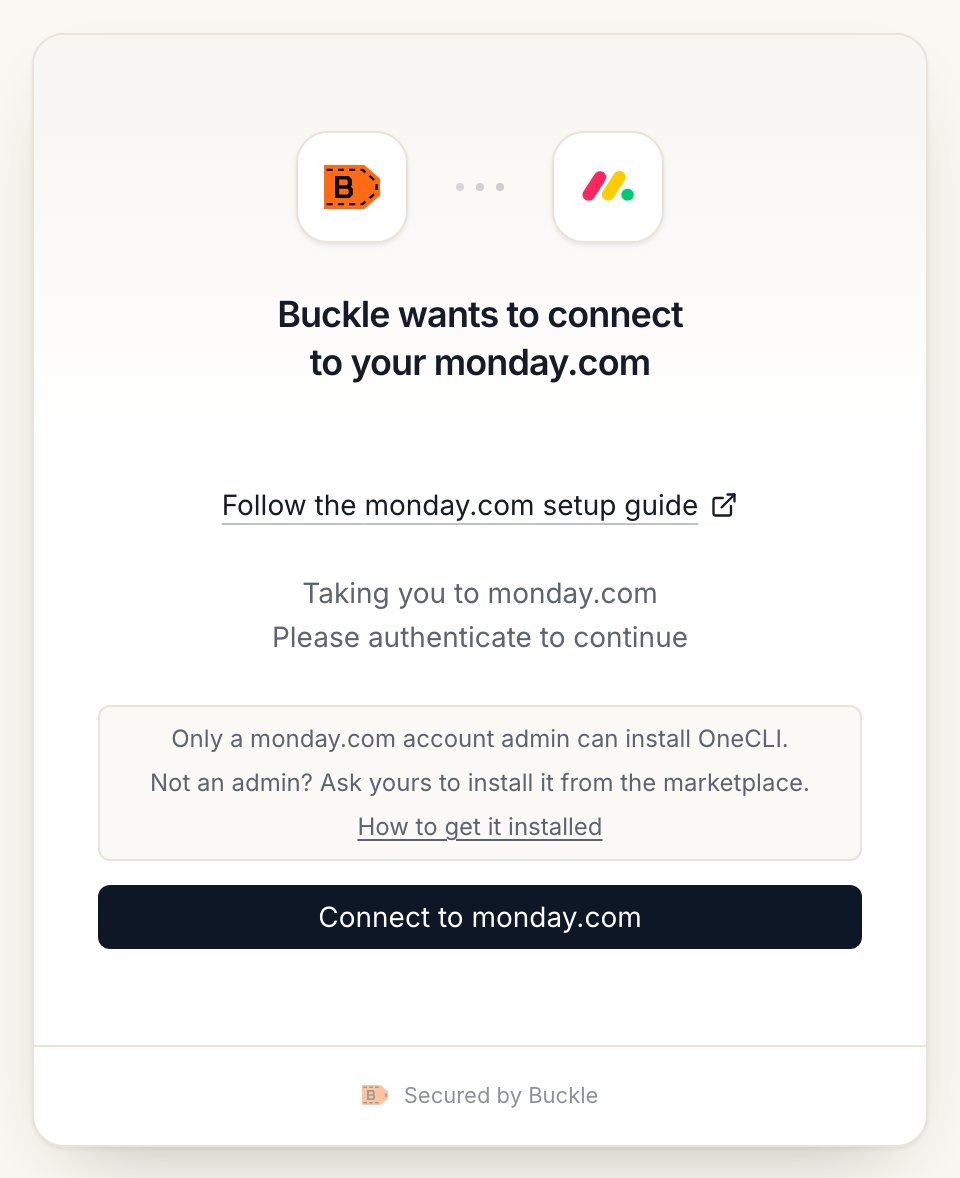
Click Connect Monday.com. You’ll be redirected to Monday.com. If Buckle isn’t installed in your account yet, an admin sees the install screen first. When Monday.com asks which workspaces to install Buckle on, select all workspaces (or every workspace your agents need). Review the requested permissions and click Authorize.
Buckle connect window for Monday.com, with a note that only a monday.com account admin can install Buckle and non-admins should ask theirs to install it from the marketplace, a How to get it installed link, and the Connect to monday.com button.

The Monday.com connect window in Buckle.
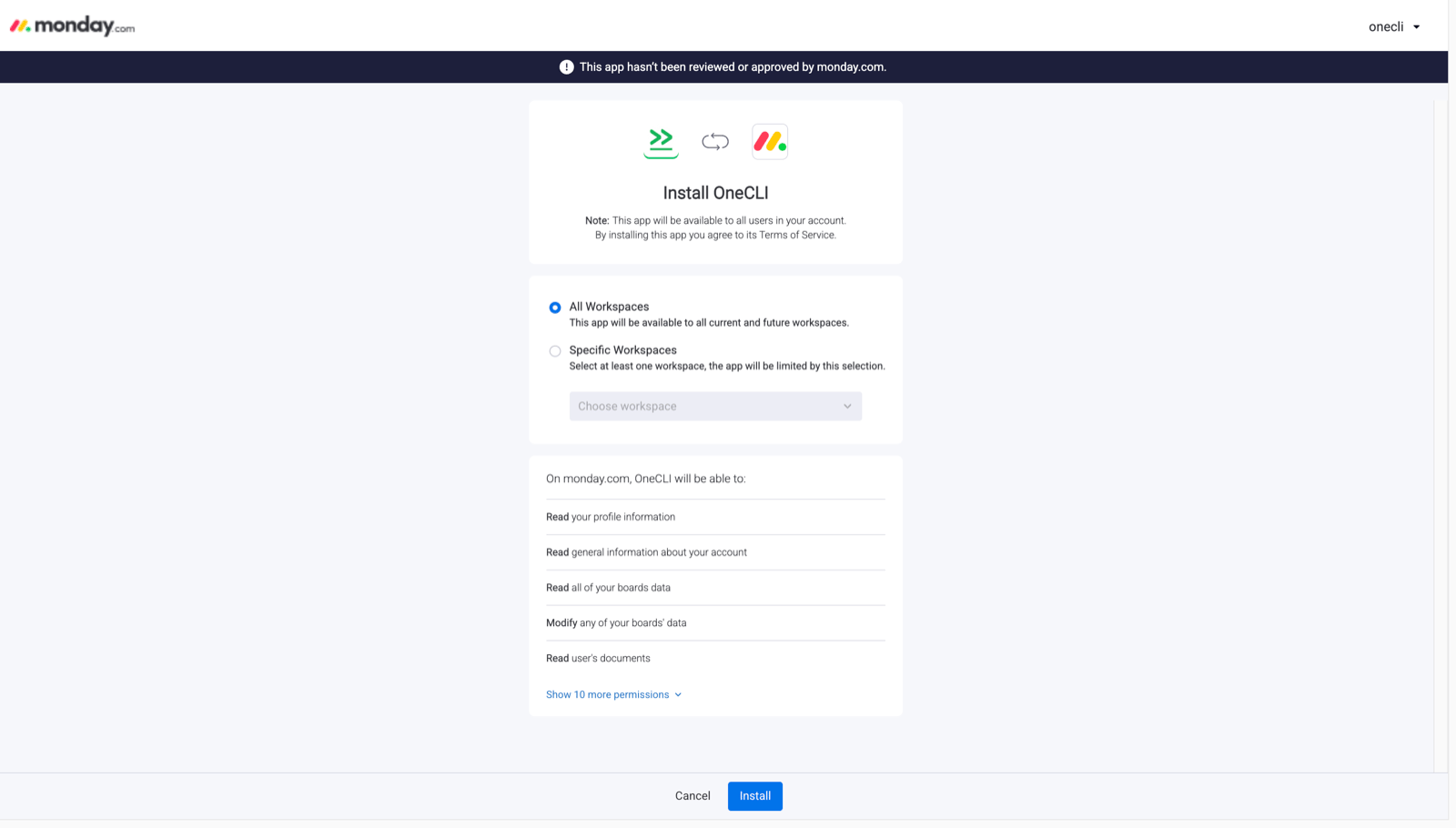
Monday.com Install Buckle screen with All Workspaces selected, a Specific Workspaces option with a workspace picker, the permissions Buckle requests, and the Install button.

If Buckle isn't installed yet, Monday.com shows its install screen first. Keep All Workspaces selected, or pick every workspace your agents need.
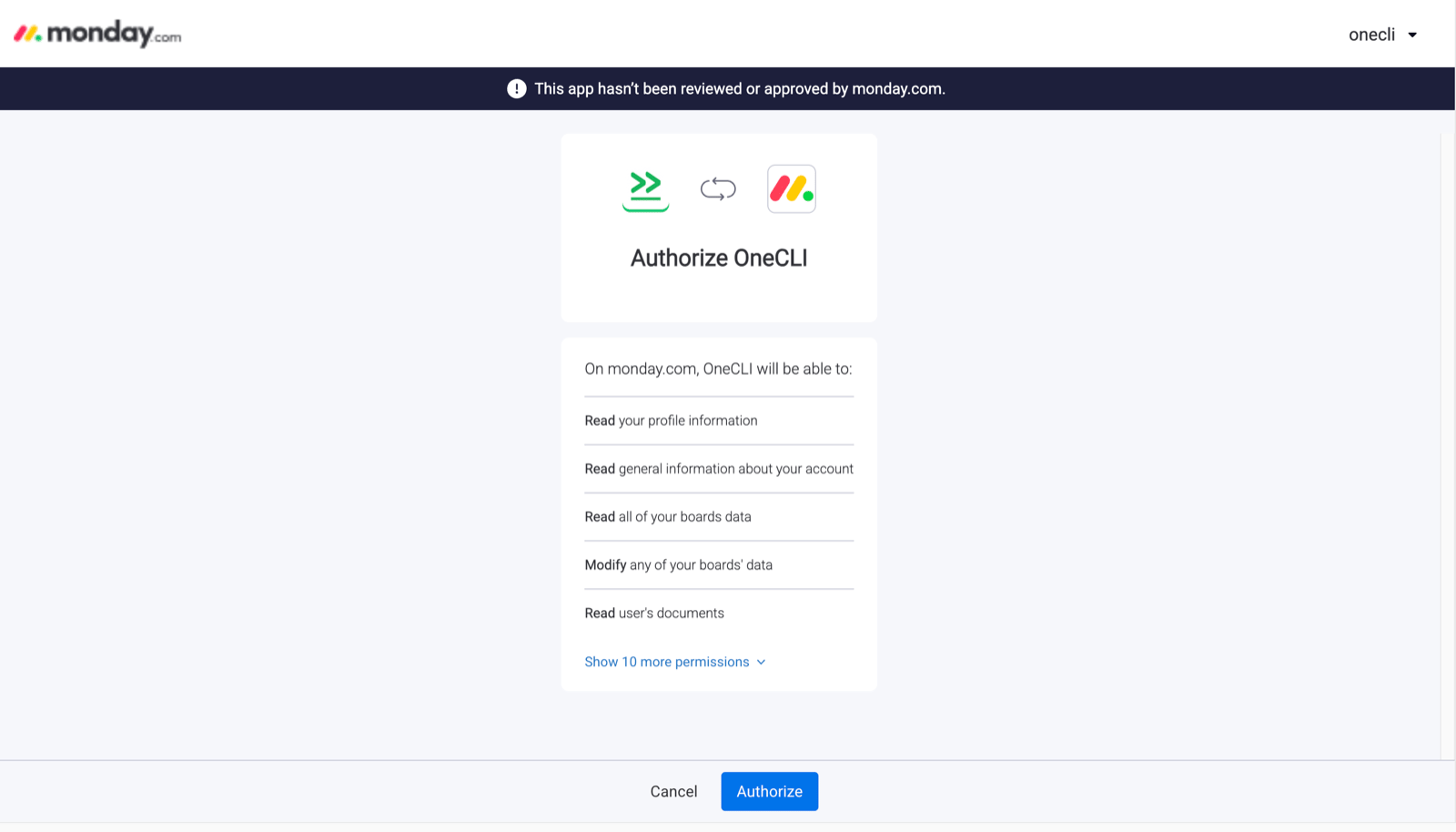
Monday.com Authorize Buckle screen listing permissions such as read your profile information, read account information, read and modify boards data, and read documents, with Cancel and Authorize buttons.

Monday.com asks you to authorize Buckle and lists the permissions it requests.

3

Verify

After authorization, you’ll be redirected back to the dashboard. The connection will show as Connected with your Monday.com account email.

If you’re not a Monday.com admin

If Buckle isn’t installed in your Monday.com account, Monday.com shows App is not installed and the Authorize button is disabled. You can’t install it yourself, but you can ask your admin to do it in a few clicks.
1

Ask your admin to install Buckle

Send your Monday.com admin this install link:Install Buckle in Monday.comYour admin opens it, chooses your account, selects all workspaces (or every workspace your agents need), and clicks Install. Buckle only needs to be installed once per account.You can also request it yourself from the Monday.com marketplace. Open the Buckle app page and click Request to add. Every admin on your account gets the request by email and as a notification.
2

Connect

Once your admin has installed Buckle, go back to Settings > Apps > Monday.com in Buckle and click Connect Monday.com. The Authorize button now works.
On Monday.com Enterprise, admins can let non-admins install apps through a custom role with Access the Apps admin section turned on.

What agents can do

Use cases

  • Project management agents that create and update board items based on incoming requests
  • Standup bots that read board status and generate summaries
  • Agents that sync Monday.com items with other project management tools
  • Reporting agents that pull board data for analysis

Self-hosted: use your own monday.com app

Skip this section on Buckle Cloud. It’s only for self-hosted Buckle without MONDAY_CLIENT_ID and MONDAY_CLIENT_SECRET set, or if you want your own company name on monday.com’s install screen.

1. Create the monday.com app

In monday.com, open your avatar > Developers, then select Build app. Name it and save.
Open OAuth & Permissions > Scopes and tick:me:read, account:read, users:read, teams:read, workspaces:read, workspaces:write, boards:read, boards:write, docs:read, docs:write, updates:read, updates:write, assets:read, tags:read, notifications:write, webhooks:write
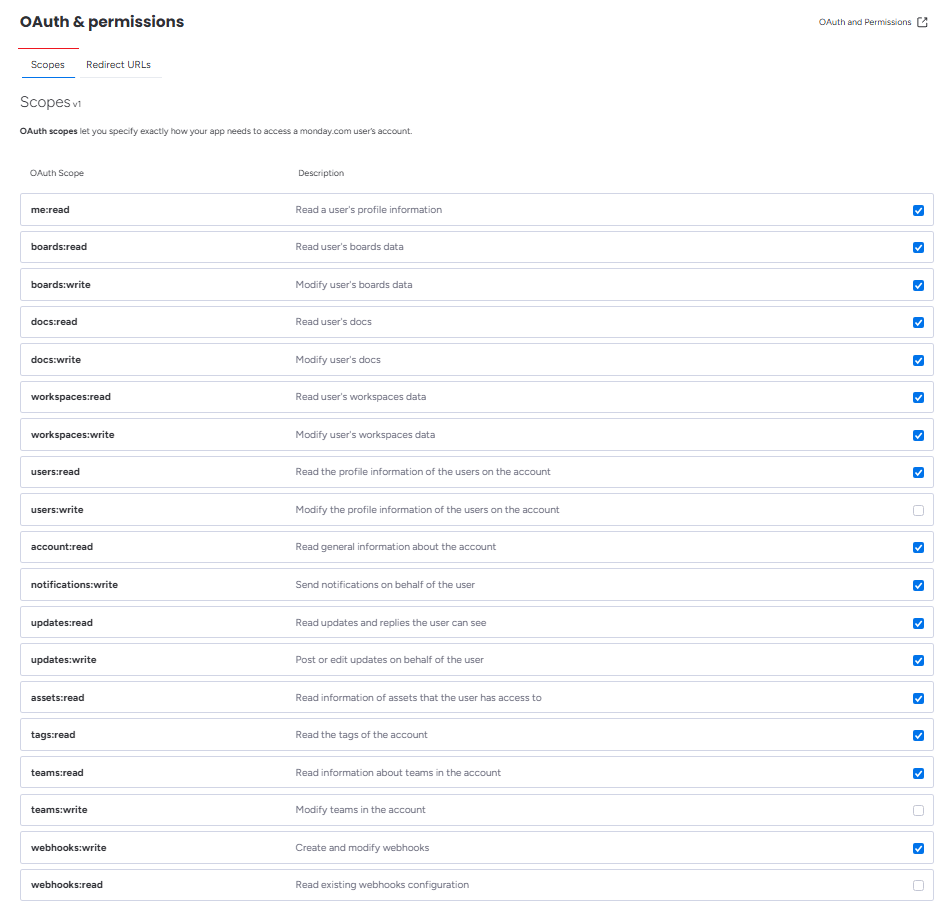
monday.com Developer Center, OAuth & permissions, Scopes tab, with Buckle's 16 scopes ticked and users:write, teams:write, and webhooks:read left unticked.

The Scopes tab of your monday.com app with Buckle's scopes ticked.

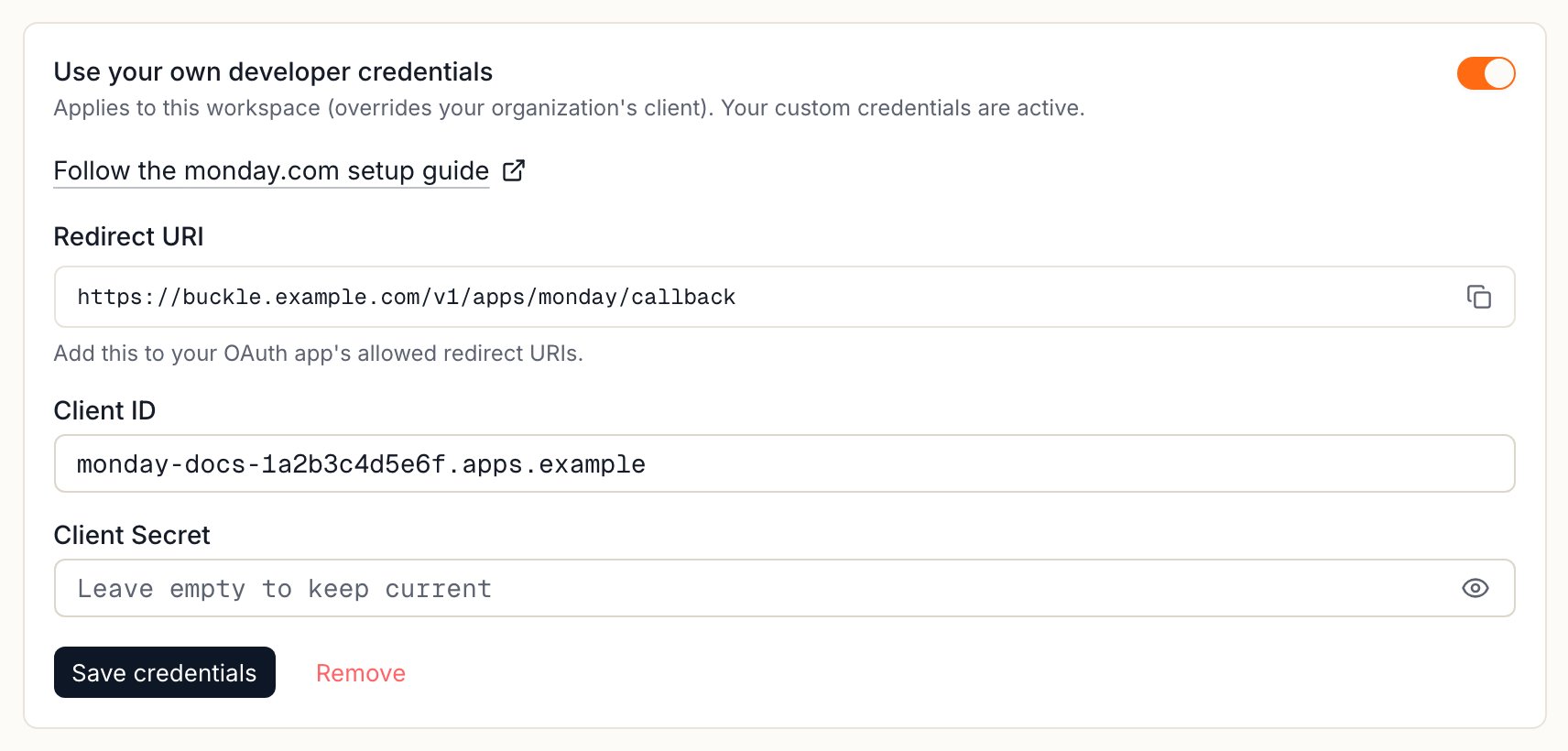
In Buckle, open Settings > Apps > monday.com > Custom credentials and copy the Redirect URI. In monday.com, open OAuth & Permissions > Redirect URLs, add it, and save.
Buckle Custom credentials card for monday.com with the setup guide link, the Redirect URI and its copy button, and the client ID and secret fields.

Copy the Redirect URI from Custom credentials in Buckle.
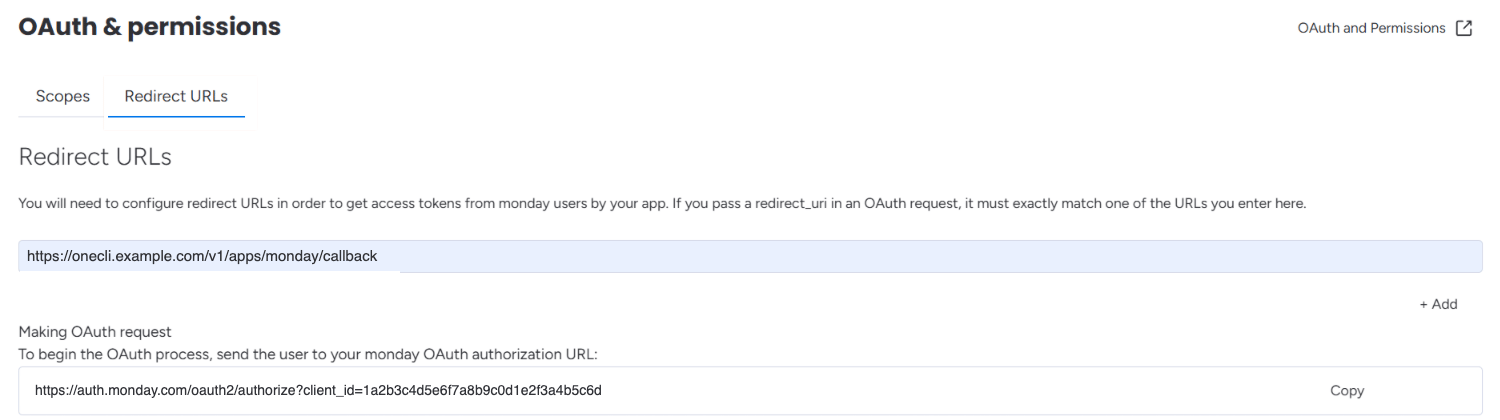
monday.com Developer Center, OAuth & permissions, Redirect URLs tab, with https://buckle.example.com/v1/apps/monday/callback.

The Redirect URLs tab with the Buckle Redirect URI.

Open Basic Information and copy the Client ID and Client Secret. Paste both into Settings > Apps > monday.com > Custom credentials, select Save credentials, then Connect and install the app in monday.com.

Controlling access

Access is per agent: grant the connection to each agent that needs it. For finer control, use organization rules: Monday.com uses a GraphQL API (api.monday.com/v2), so path-based rules apply to that endpoint, and conditions match specific operations in the request body.

FAQ

An account admin must install the Buckle app once. After that, everyone in the account can connect. See If you’re not a Monday.com admin.
Buckle only reaches workspaces selected when the app was installed. Reinstall and choose all workspaces, or the ones agents need.
No. The token stays in Buckle, and the gateway adds it at the proxy. See How it works.
Monday.com uses one GraphQL endpoint, so use rules with conditions that match operations in the request body.